


Jersey Jack backups
Import the backup a Jersey Jack game writes to a USB stick. Pinventory keeps the whole file so you can restore the game later, and records a snapshot of its audit readings.
Find the Backups card
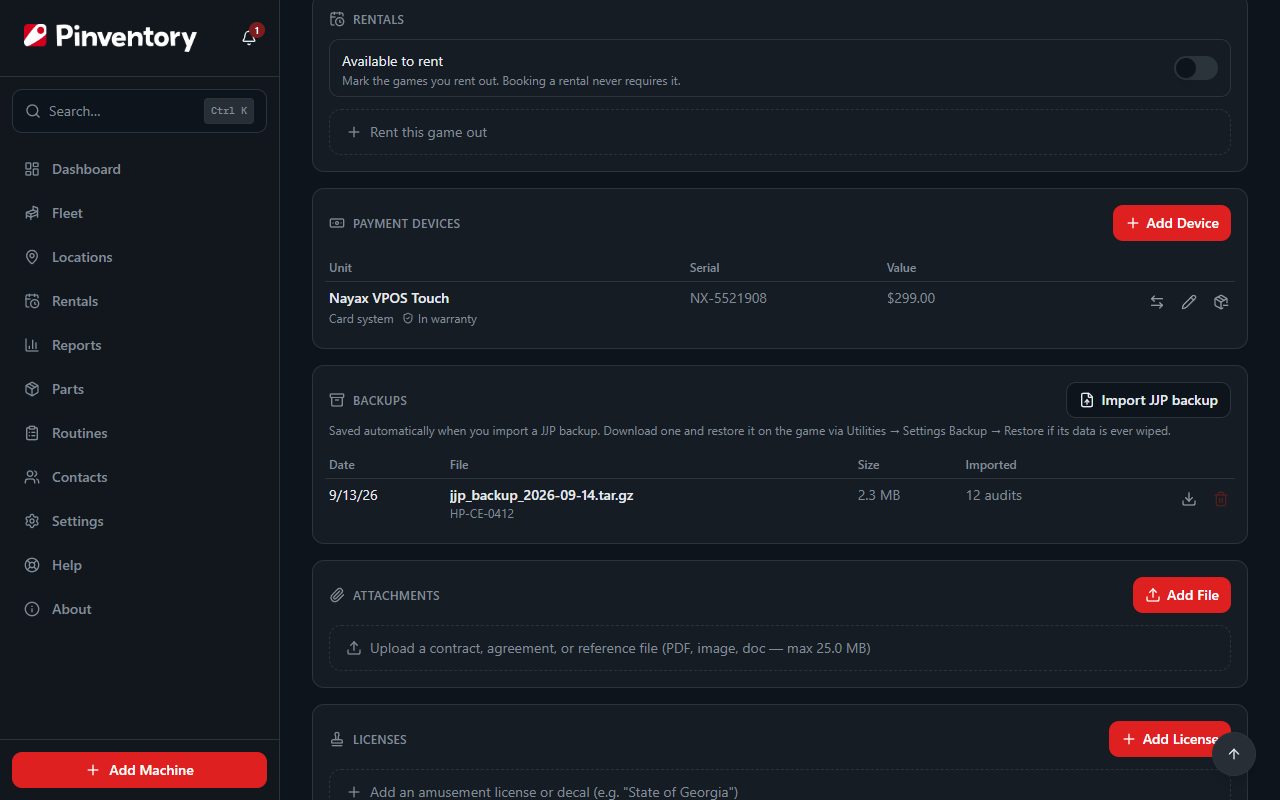
Open the machine and scroll the Details tab to Backups. The card appears on a machine linked to a Jersey Jack Pinball game in the catalog, because Pinventory reads the manufacturer from that link.
No card means the machine is not linked to a catalog game, or the linked game is not a Jersey Jack title.
Save the backup on the game
Put a USB stick in the game and go to Utilities → Settings Backup. The game writes a .tar.gz file to the stick.
Import the file
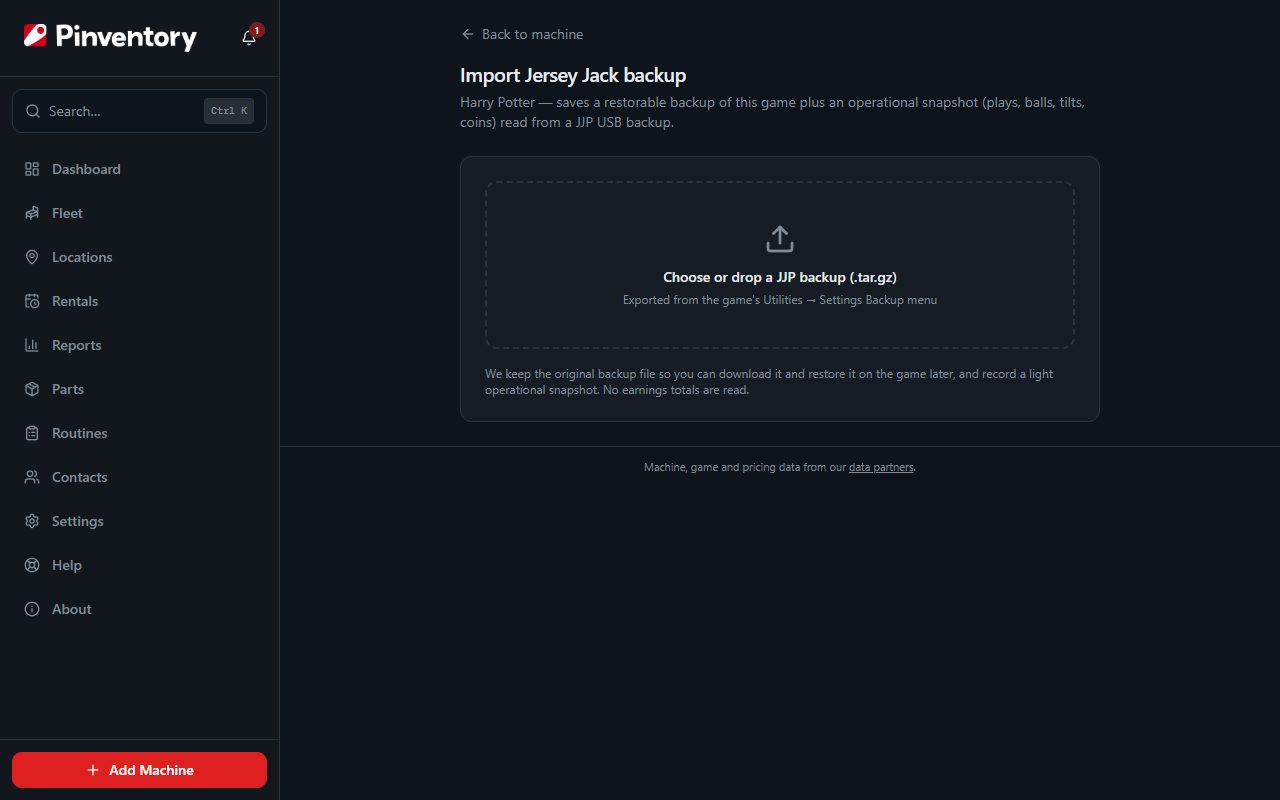
On the Backups card, press Import JJP backup. Choose the file or drop it on the page, and Pinventory reads it before it saves anything. A file that is not a Jersey Jack backup, or holds no audit data Pinventory recognizes, is turned away.
It records plays, balls, tilts and coins from the game's audits. It reads no earnings totals. The game's settings stay inside the backup file, ready to restore.
Check the reading date, then import
The review screen shows the game's hostname from the backup, the reading date, and the operational snapshot of audit readings.
Pinventory sets the reading date to the most recent reading in the backup. Change it if the readings belong to another day, then press Import. Choose a different file starts over.
The readings land on the machine's Audits tab and the file goes into the Backups card.
Importing the same file twice is safe. Pinventory skips an audit snapshot it already has for that date, and keeps one copy of each backup file per machine.
Restore a game from a backup
If a reset or a hardware swap wipes the game, press the download button beside a backup on the Backups card. Copy the file to a USB stick, then restore it on the game through Utilities → Settings Backup → Restore.
The delete button removes a backup file from the card for good. Readings you already imported from it stay on the machine.
A sold game keeps its backups for download, but you can no longer import or delete them.
Good to know
- Jersey Jack audit files have their own import on the Audits tab. The Record audits guide covers it.