


Record audits
Log meter readings by hand, or pull them straight off the game.
Start a reading
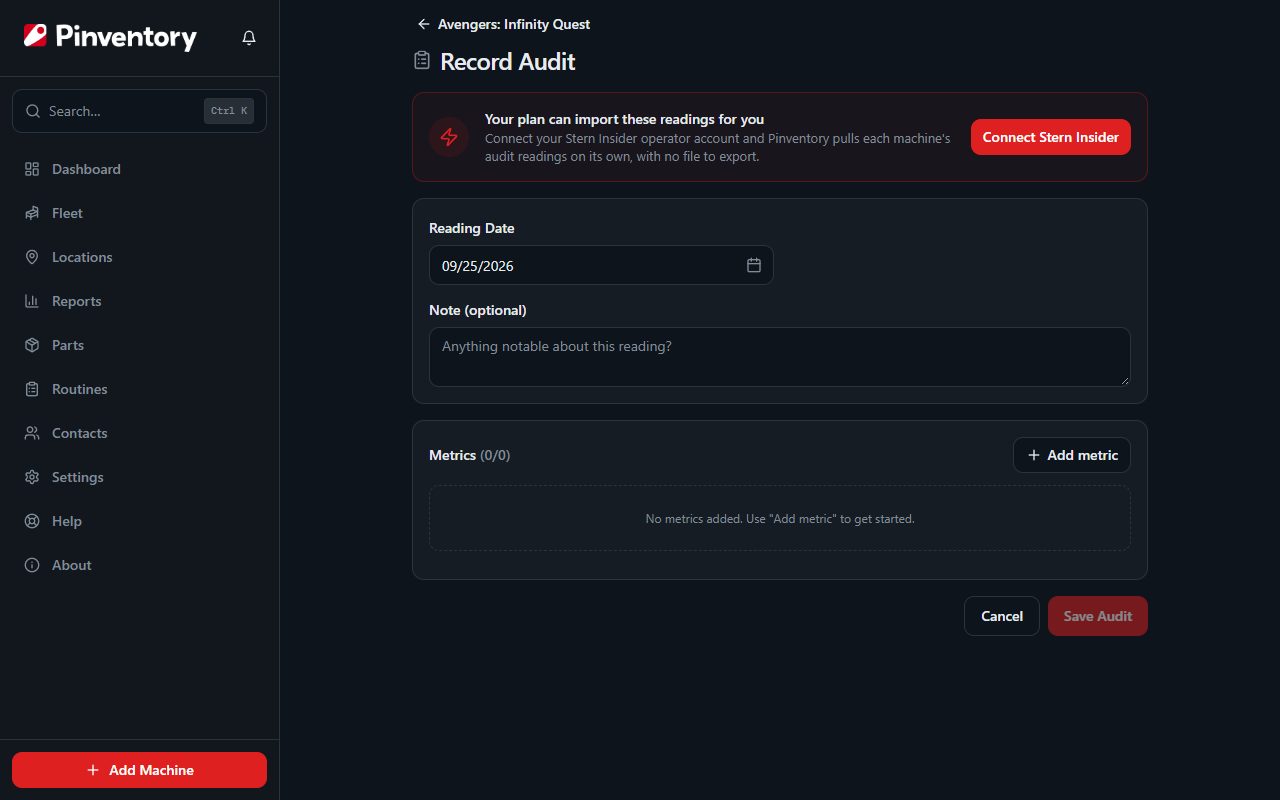
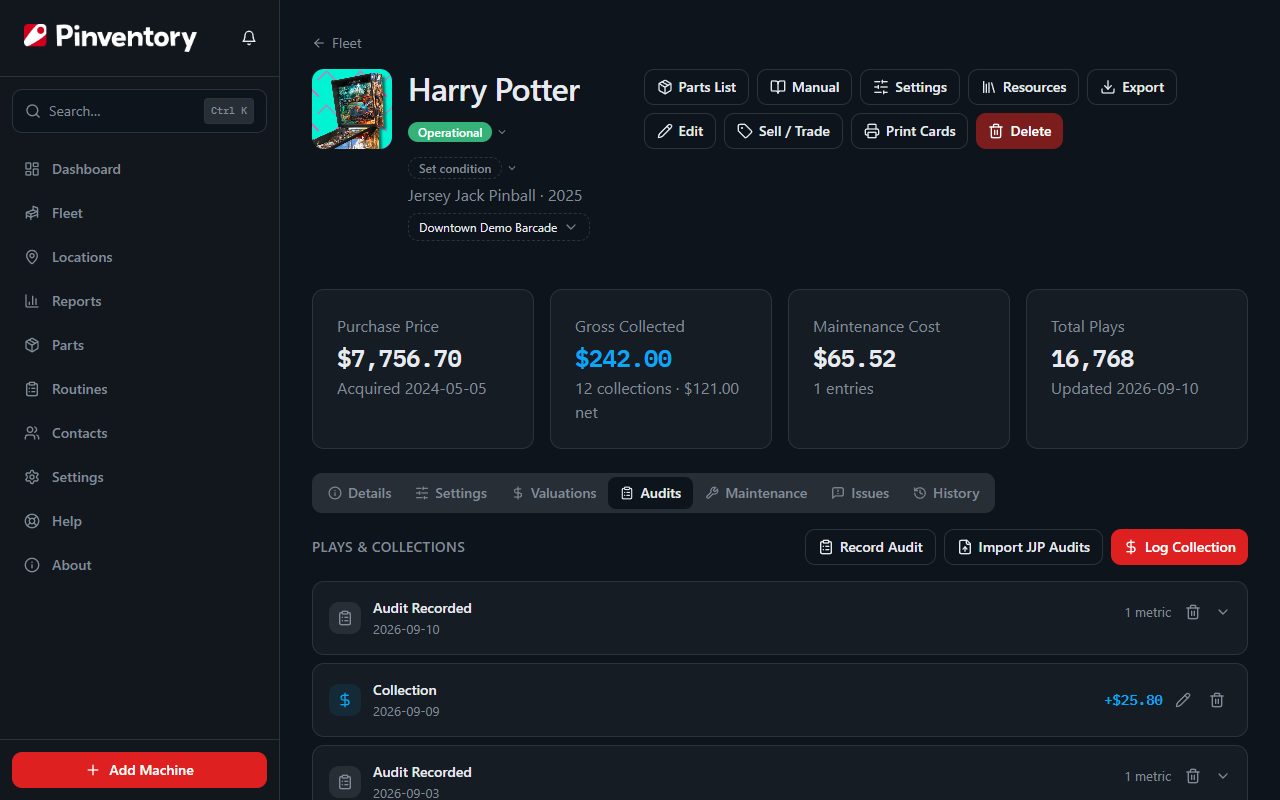
Open the machine and press Record Audit in the row of buttons under its name. Set the date you took the reading, which is not always the date you are typing it in.
A note is optional and useful. Write down anything that explains an odd number, such as a tournament, a long outage, or a free-play weekend.
Pick the metrics you track
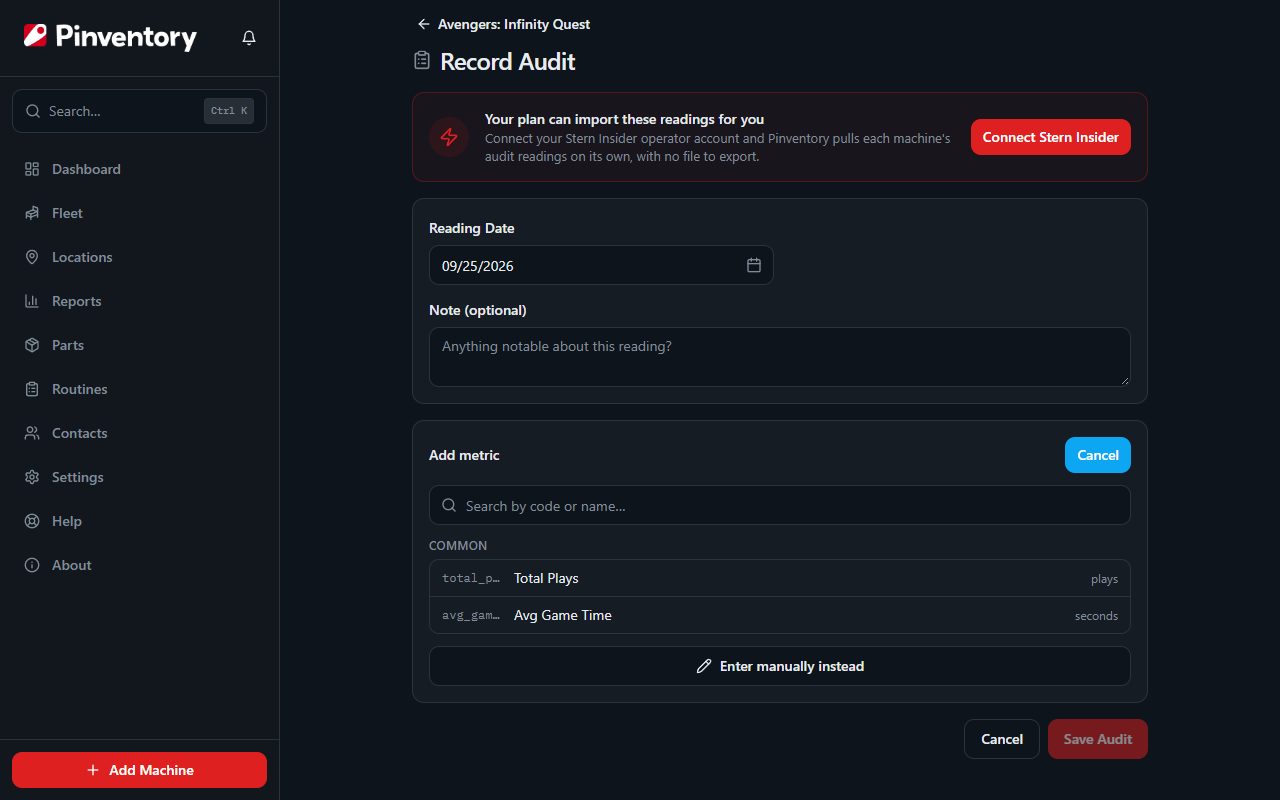
Press Add metric and search the catalog by name or by code. The list is grouped by category, so the common counters such as total plays, coins, and ball time are quick to find.
If your game reports something the catalog does not list, choose to enter it manually and give it a name and a unit. Pinventory then remembers it for next time.
Keep the metric name the same from one reading to the next. The name is how Pinventory ties readings together into a history, so a renamed metric starts a new series.
Enter the values and save
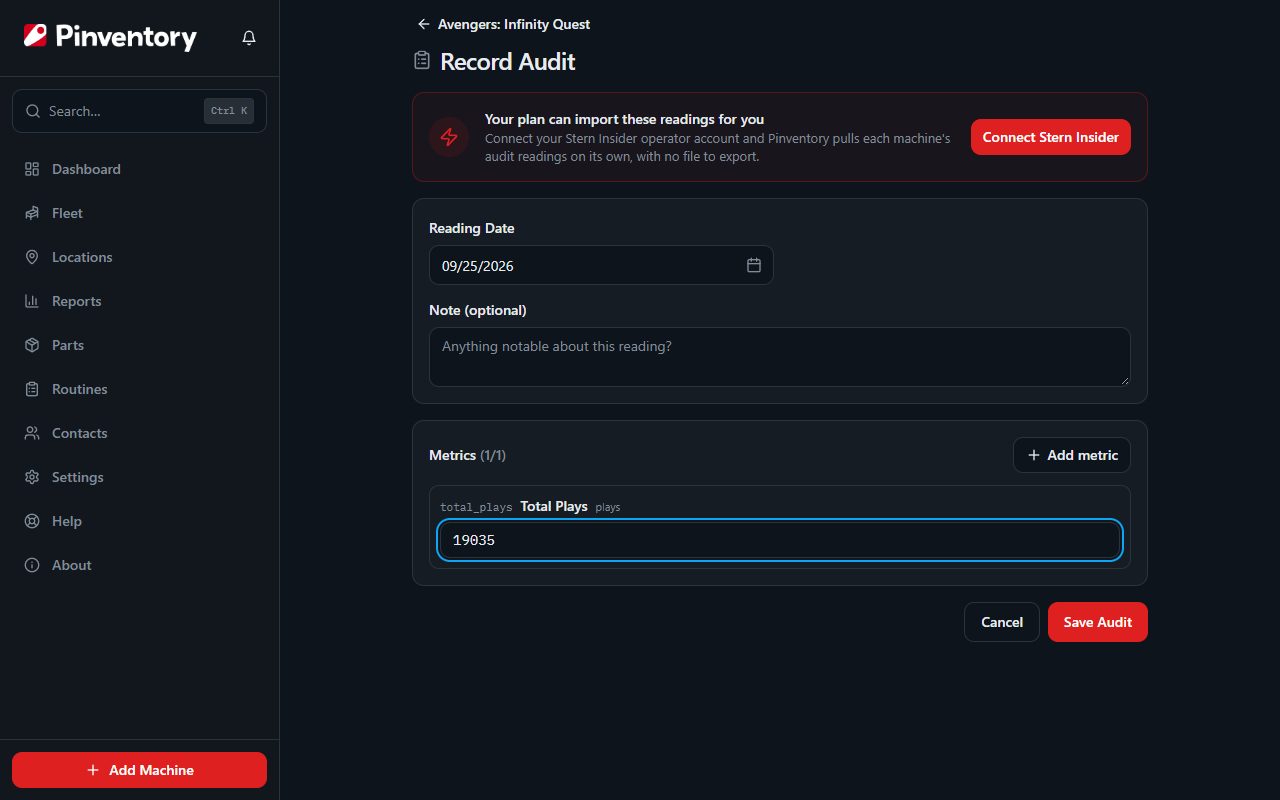
Type each reading in. For metrics measured in seconds, Pinventory shows you the minutes and seconds as you type so you can check it against the screen on the game.
Save once you have entered at least one value. You do not need to fill in every metric on every visit.
Import Stern Insider audits
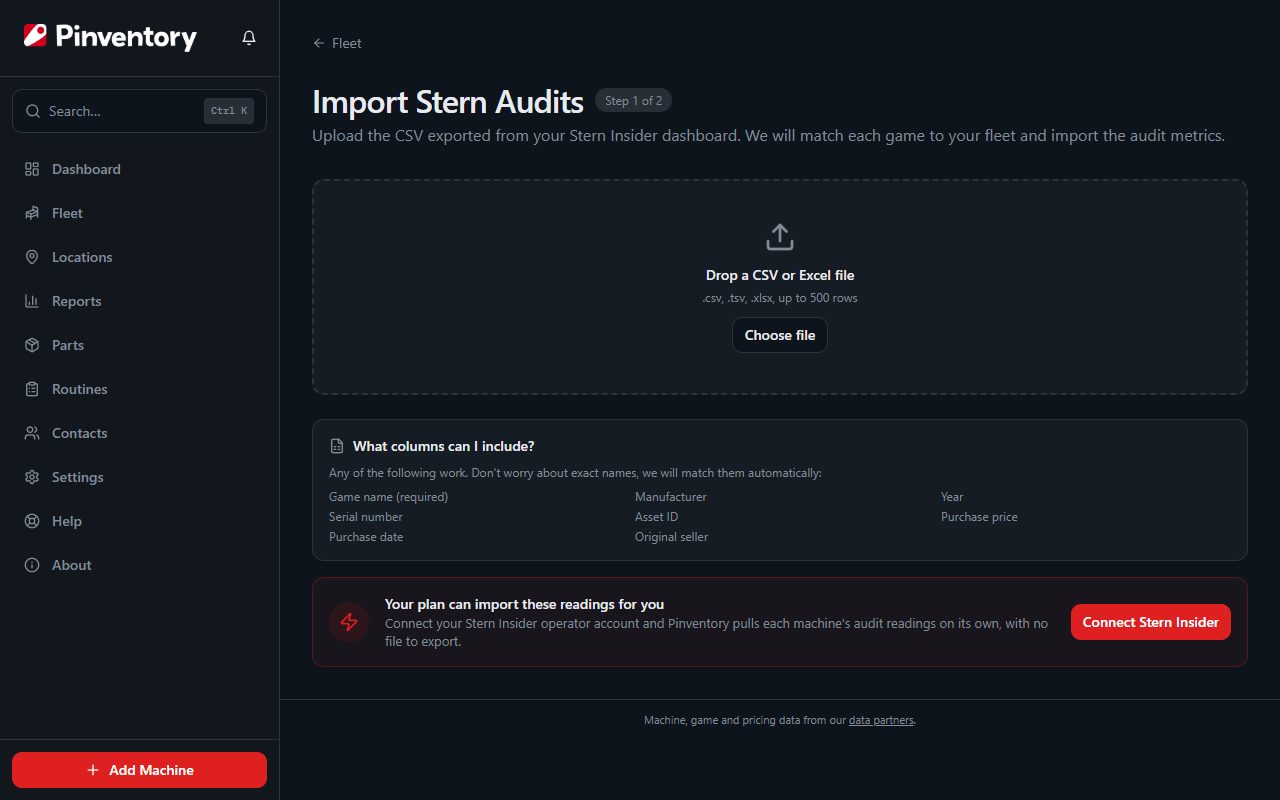
For Stern games, export the audits from Insider Connected and import the file instead of typing. Start from Import Stern Audits on the Fleet header, or from the Audits tab on the machine itself.
Upload, review what Pinventory matched, then confirm. Readings land in the same history as the ones you type by hand.
Pro skips the export entirely. Connect your Stern Insider operator account and Pinventory pulls these readings on its own, which the Stern Insider sync guide walks through.
Import Jersey Jack audits
Jersey Jack games have their own import, reached from the Audits tab on the machine. It only appears on a machine linked to a Jersey Jack game in the catalog.
The steps match the Stern import. Upload the file, check the review screen, then confirm.
Good to know
- Readings are what make usage-based maintenance reminders work. A metric needs at least one reading before you can set a reminder against it.
- Collectors see this tab as Play History. It works the same way, without the collection figures.
- Take a reading on the same visit you collect. The two together tell you what a game earns per play, not just what it earns. On Pro, your next collection then shows what the game should have, from the paid credits counted between the two readings.