


Order and receive parts
Get your stock into Pinventory, order what you need, and close out the delivery.
Put your parts in Pinventory
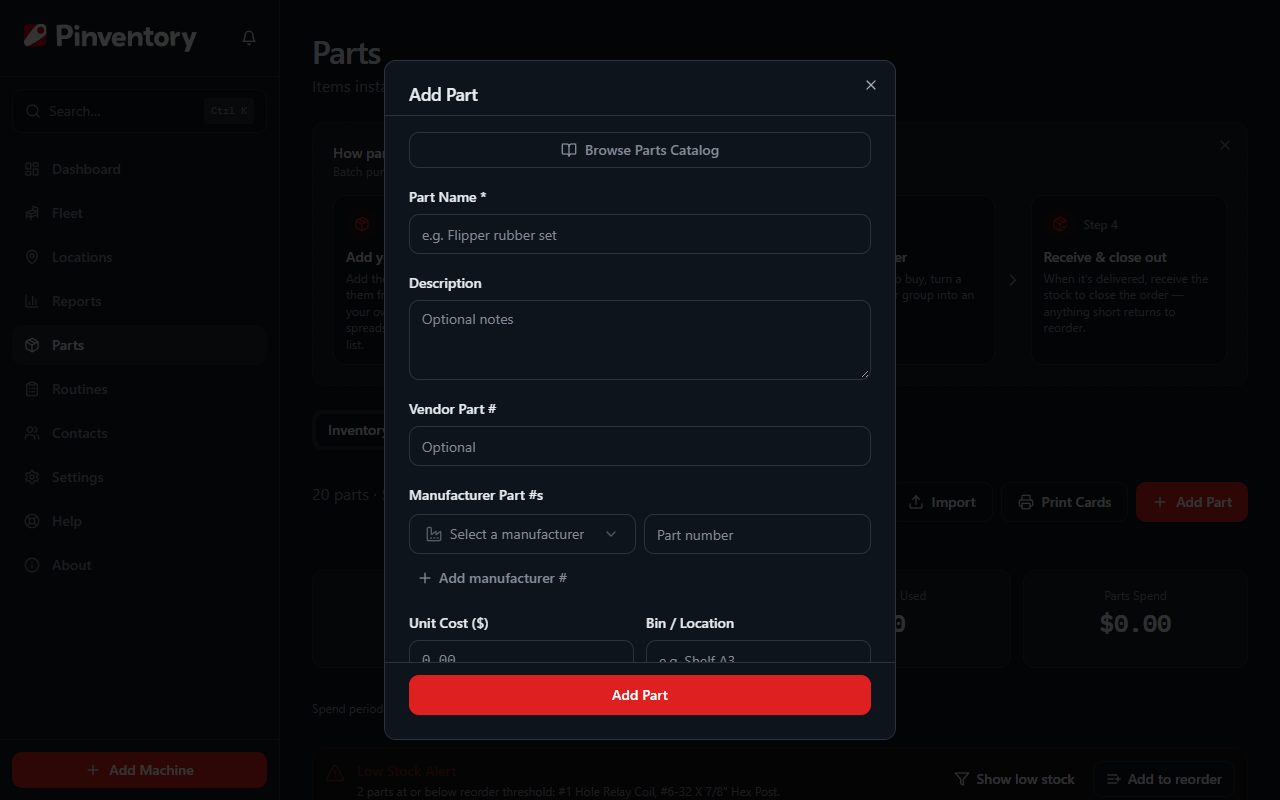
Everything below depends on Pinventory knowing what you stock, so start here. Use Add Part on the Inventory tab for something already on your shelf, and enter what you have on hand and what it cost.
Browse Parts Catalog, at the top of the form, is the quicker route for anything common. Pick the entry from the global catalog and the part number, the manufacturer, and the description come with it. If you already keep your parts in a spreadsheet, import the lot in one pass instead.
Set the Reorder At number while you are in the form. That is the level that decides when a part counts as low, and without it nothing can be flagged later.
Import is for this first pass only. Once your parts are in, the steps below keep the quantities right, so there is no need to import the sheet again.
Flag what is running low
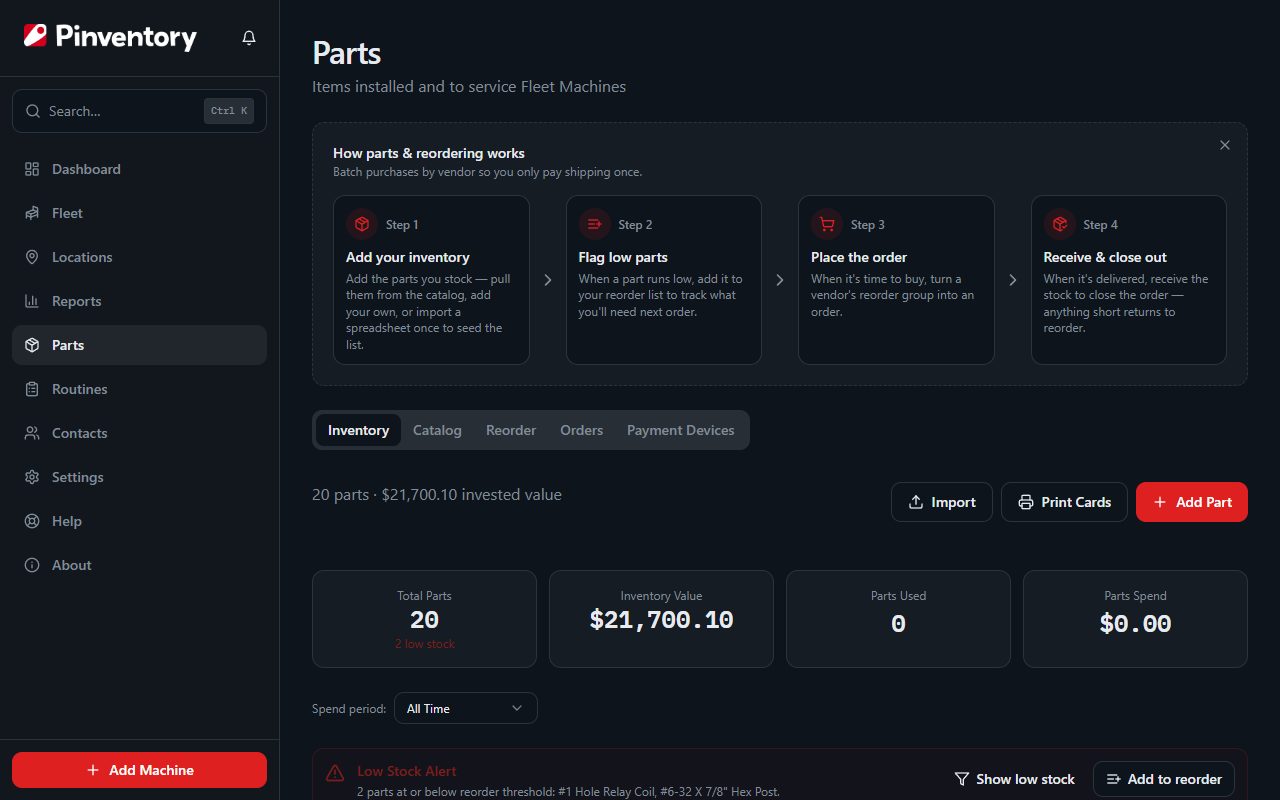
Once a part has a threshold, Pinventory watches the level for you. When stock drops to it, a Low Stock Alert appears at the top of the Inventory tab.
Add the whole alert to your reorder list in one press, or add a single part from its row or its detail page. You choose the quantity as you add it.
When many parts are low, the alert gives the count only. Press Show low stock, and the list below shows only those parts.
Turn the list into an order
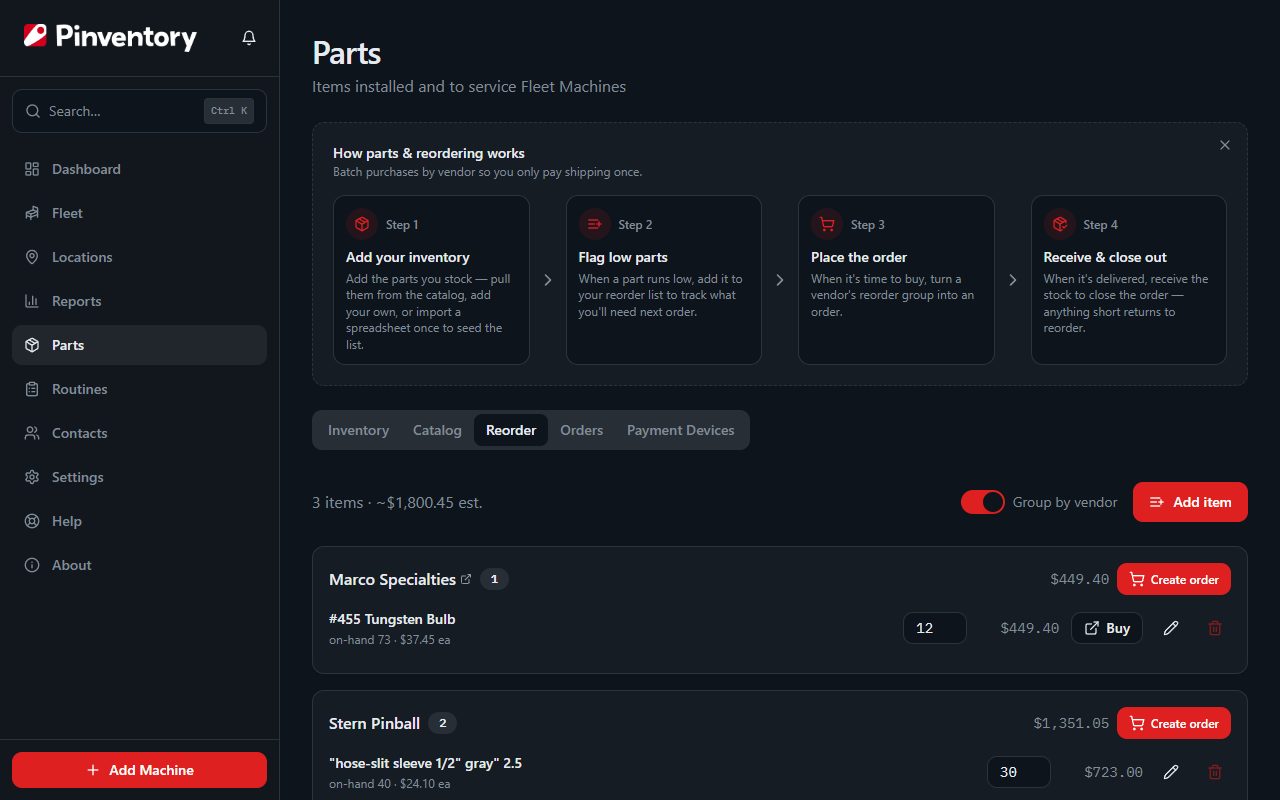
The Reorder tab is your running shopping list. Switch on Group by vendor and it splits into the orders you are actually going to place, because you buy from Marco, Pinball Life, and Comet separately.
Check the quantities, then press Create order on a vendor group. Pinventory builds the purchase order from that group and opens it.
The reorder list is a queue, not an order. Nothing is committed until you create the purchase order.
Receive the shipment
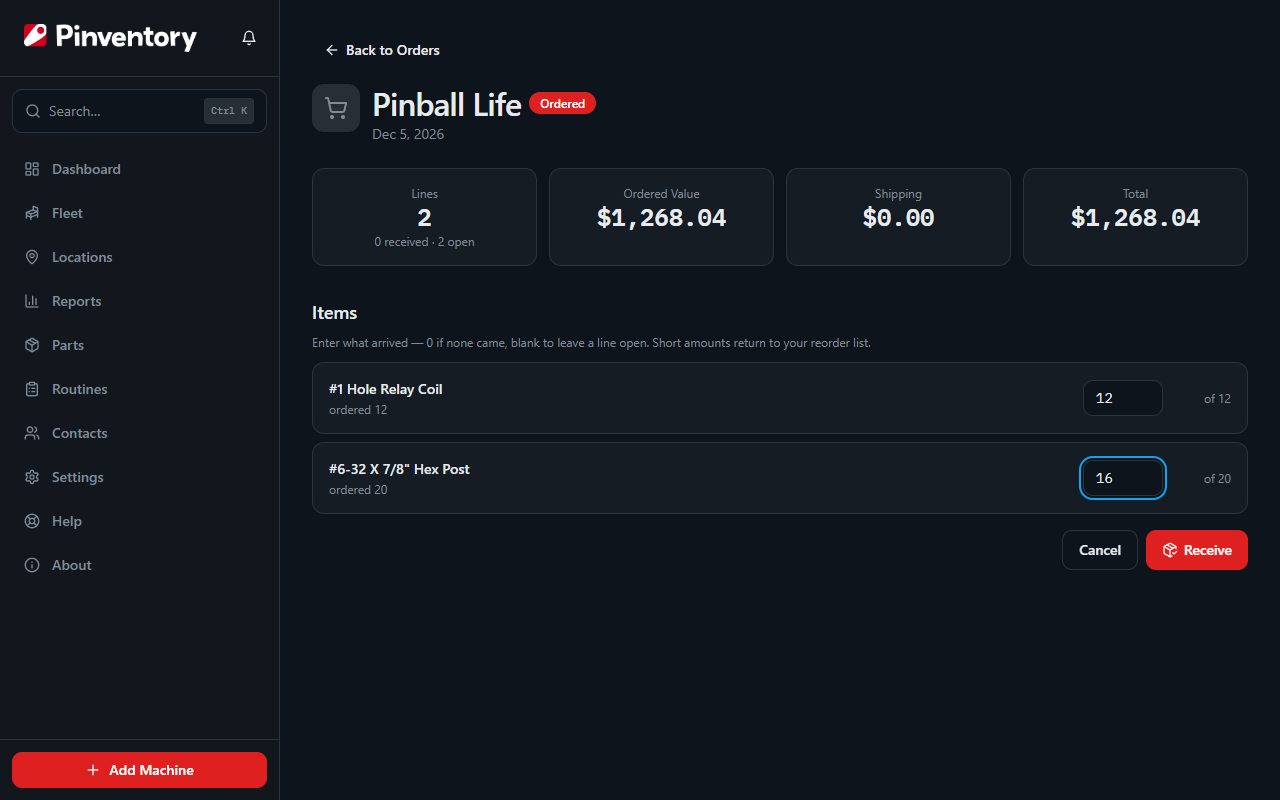
When the box arrives, open the order and press Receive. Every line turns into a quantity field.
Enter what actually turned up. Type 0 if a line came up empty, and leave a line blank to keep it open for a later delivery. Received parts go into your stock at the cost on the order.
Handle a short shipment
Vendors short you. When you receive less than you ordered, Pinventory puts the difference straight back on your reorder list rather than quietly losing it.
The confirmation tells you how many items came in and how many went back. The shortfall is then waiting on the Reorder tab, under the same vendor, ready for the next order you place.
Put a part on a game
A mod is just a part you happen to bolt on. Order a shaker kit the same way you order anything else, receive it onto the shelf, then open the game, go to the Details tab, and choose Add Mod.
Pick the part from the inventory box at the top. The mod takes its name and cost from the part, and the quantity comes off your stock when you save. You are not asked where it came from or when, because the part already knows.
Leave that box empty for a mod you bought years ago and just want on the record. Then you get the full form, including where it came from and the date, because nothing else holds that.
Removing a mod asks whether to put the part back on the shelf. Say yes for a mistake, no if the part went out with the game.
Two shortcuts worth knowing
You will not always plan ahead. To put stock on the shelf without an order behind it, use Receive Stock straight from the part and enter the quantity, the cost, and the vendor.
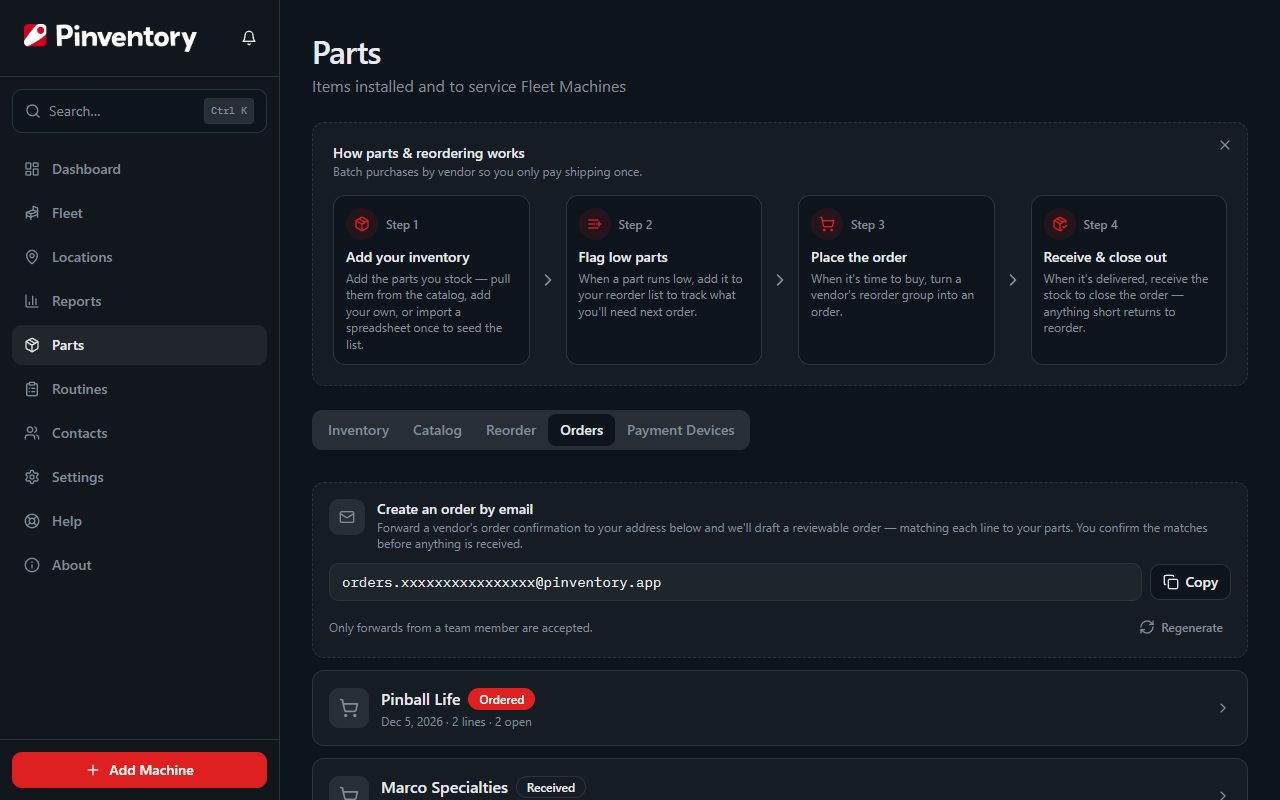
You can also let the order build itself. Each account gets a private forwarding address on the Orders tab. Forward the confirmation email from your vendor and Pinventory reads it into a draft order, which waits for you to check the matched parts and confirm it before you can receive against it.
Good to know
- Technicians can add to the reorder list. Creating and receiving orders is owner and manager work.
- Parts fitted during maintenance, or installed on a game as a mod, come out of stock automatically, so the levels that drive your reorder alerts stay true without any counting.
- An emailed order cannot be received until you confirm it, so an AI mismatch never turns into wrong stock.