


Collections and payouts
Collect a whole venue in one pass, then pay the location its share.
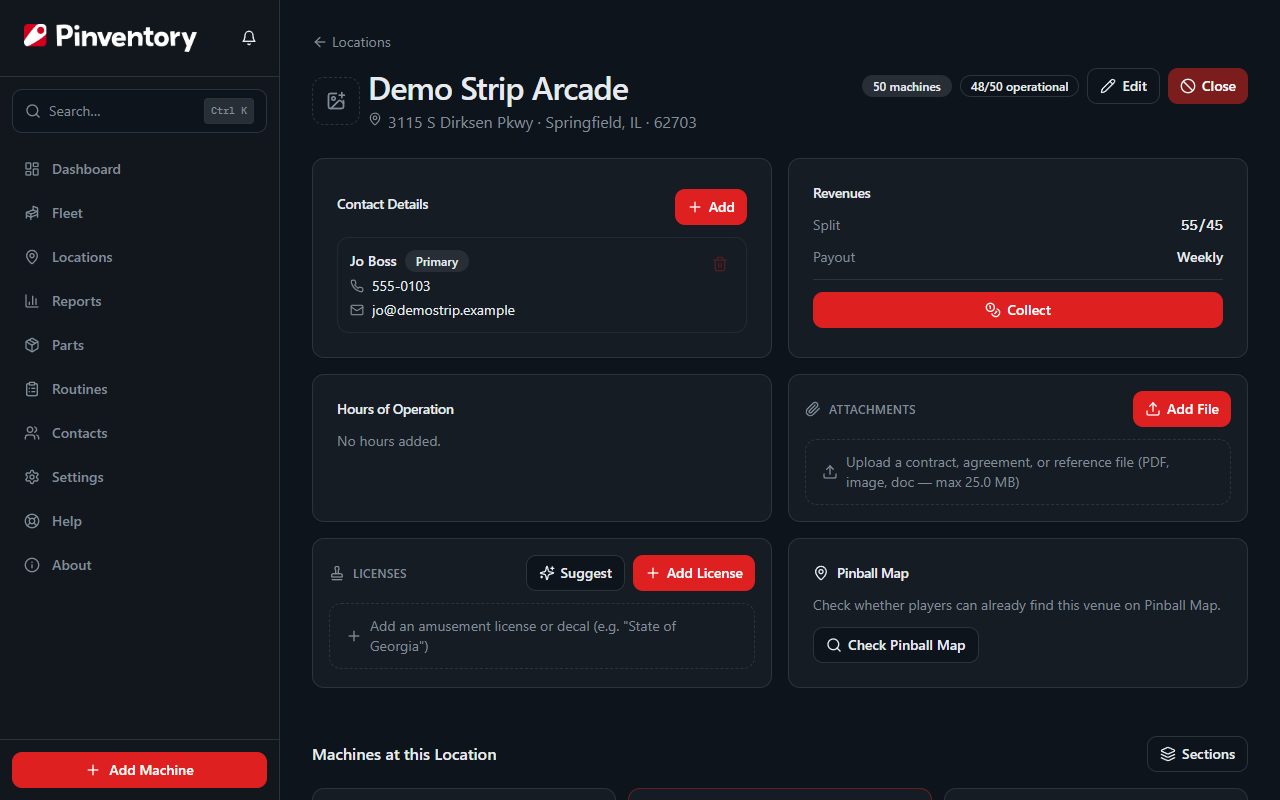
Set the split on the location
Open the location and check its Revenues card. A split venue runs on Per-Play, and the split reads as your share and then the venue's, so 55/45 means you keep 55 percent.
Pinventory applies that split to every collection you record at the venue. You enter one number per machine and the math is done for you.
Collect the whole venue at once
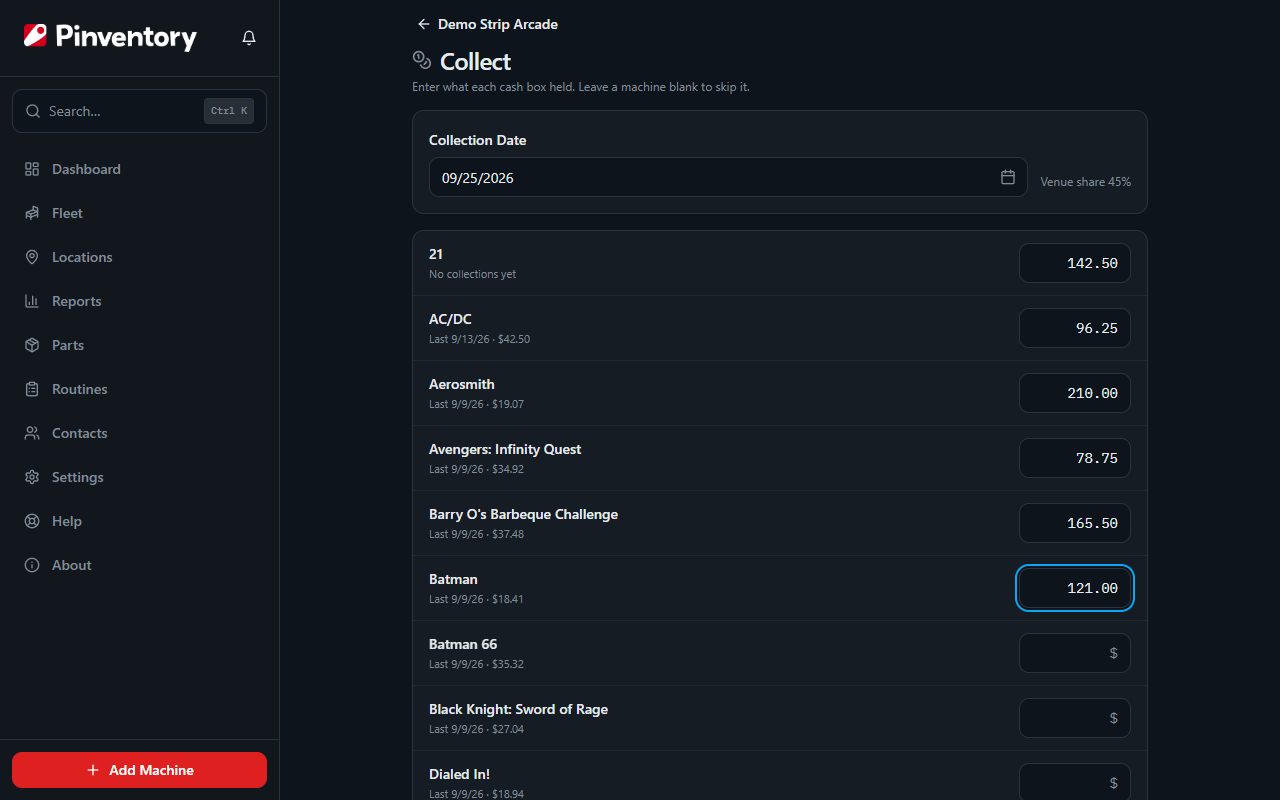
On the location page, press Collect. You get one sheet with every machine at that venue and a single collection date at the top.
Work down the list and enter what came out of each machine. The card at the bottom keeps a running total of the gross, the venue share, and your net, so you can check the figure against the cash in your hand before you save.
Machines you leave blank are skipped. You do not have to collect every game on every visit.
If you count your coins, 1s and 5s as separate piles, turn on Count collections by denomination in Settings. The Collect sheet links you there from under the list of games. Each game then takes Coins, 1s, 5s and Other, and Pinventory adds them up into the amount it saves.
Pinventory also lists any game you moved out of the location before you logged its cash, under Moved out since the last collection. Enter the amount there and the collection is recorded at this location and its split, so you do not have to move the game back.
On Pro, a game with audit readings and play pricing shows what it should have under its name. That figure is the paid credits the game counted since its last collection, at your pricing, and the two dates beside it are the readings it runs between. Count the cash box, then compare.
This is the fastest route for a normal collection run. One date, one pass, one save.
Collect a single machine
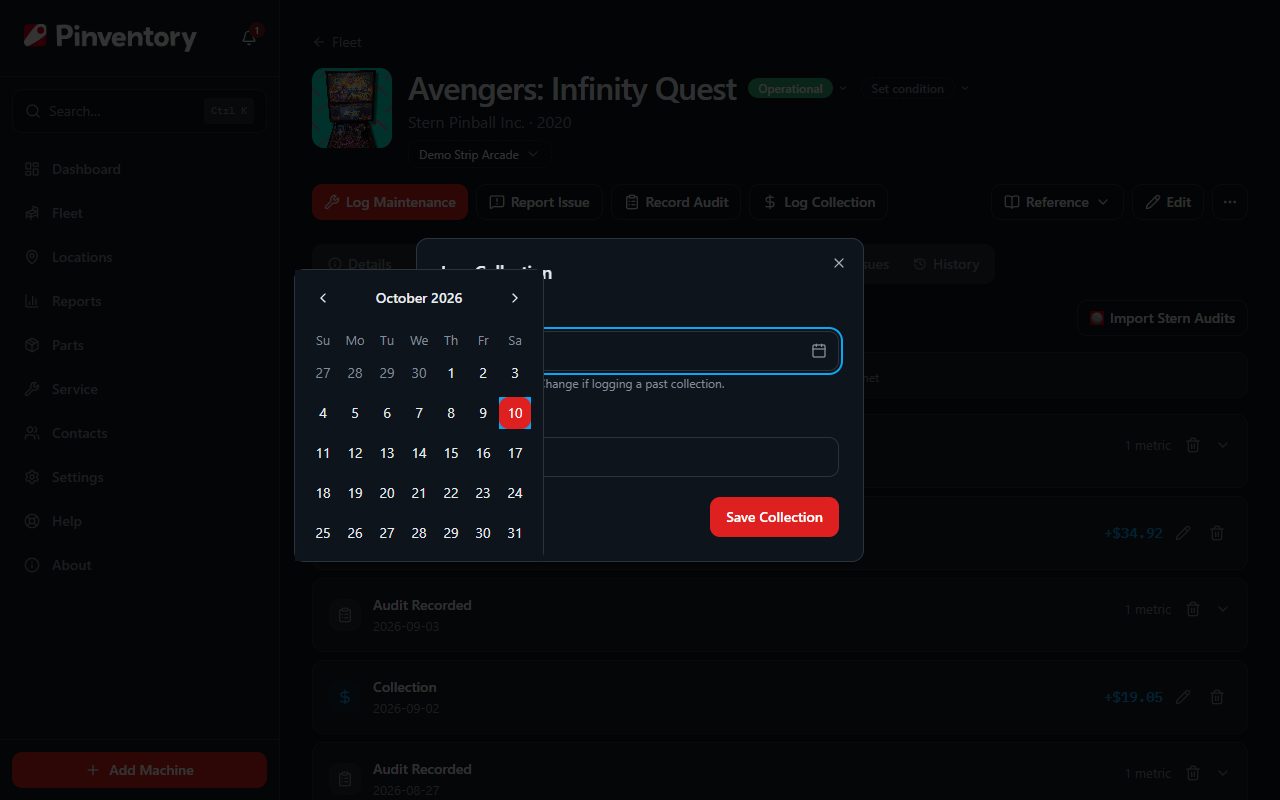
If you only need one game, open the machine and press Log Collection in the row of buttons under its name. Enter the date and the amount. The same should-have figure shows under the amount.
Both routes write the same record, so it does not matter which one you use. A machine must be assigned to a location before you can collect from it.
Pay the venue its share
To pay the location on the spot, check Record the payout now at the bottom of the Collect sheet. Pinventory fills in what the location is owed with this collection, you change the amount to what you hand over, and one save records the collections and the payout. Check Settle remaining balance to write off the difference when you round.
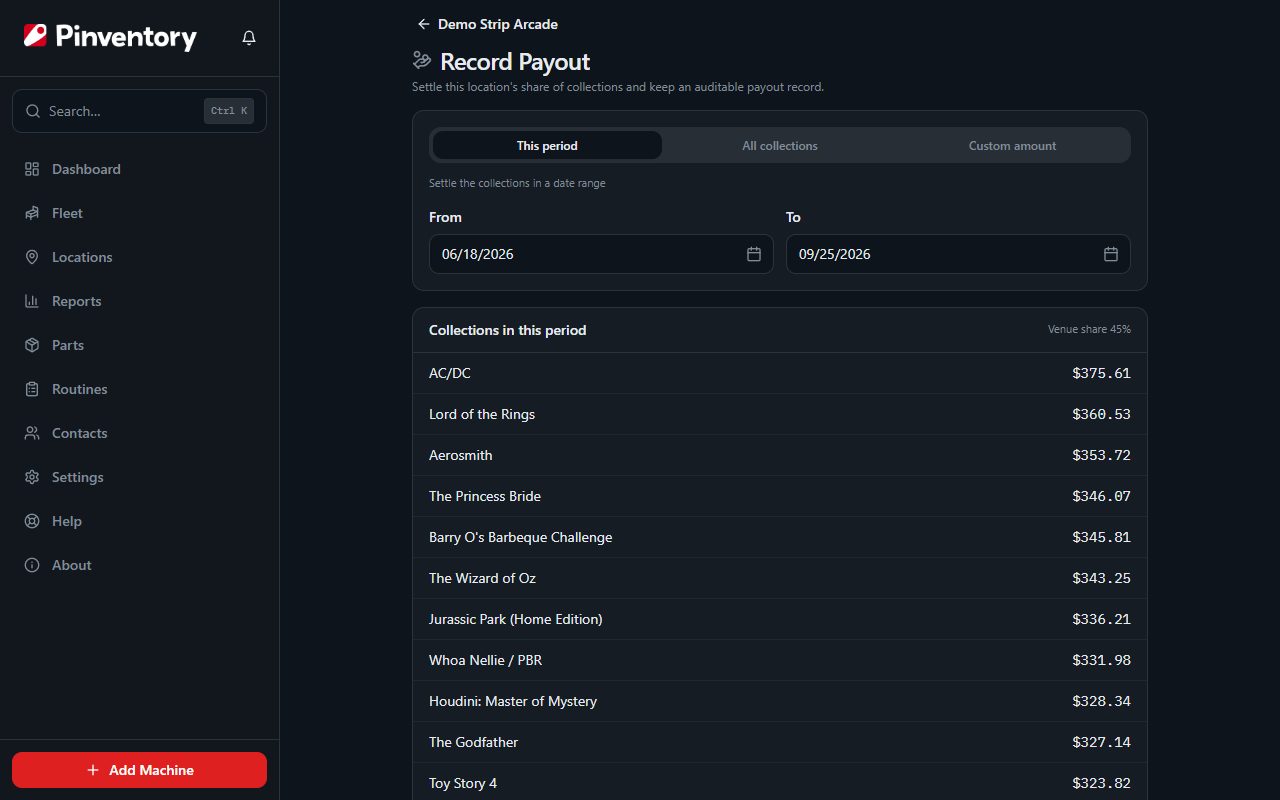
If you leave that box unchecked, Pinventory offers to settle up after you save. You can also start a payout at any time from the Location Payouts section on the location page, which tracks what is owed, what is paid, and what is still outstanding.
Choose what you are paying for: this period, everything collected so far, or an amount you type in. Then record how you paid it, whether by cash, check, ACH, card, or an app.
Preview the statement to see the collections the payout covers. You can email that statement straight to the venue, to as many as five people. Pinventory fills in the contacts already on the venue. Remove anyone this statement is not for, and add more from your contacts or by typing an address. If you type an address that is new, Pinventory offers to save it to this venue's contacts for next time.
The email sends from Pinventory with the statement attached as a PDF. A reply from the venue comes to your business email, which you set in Settings. If you have not set one, replies go to the account of whoever sent the statement. That same address also gets its own copy of the statement, so you keep a record of what the venue received.
Check the numbers
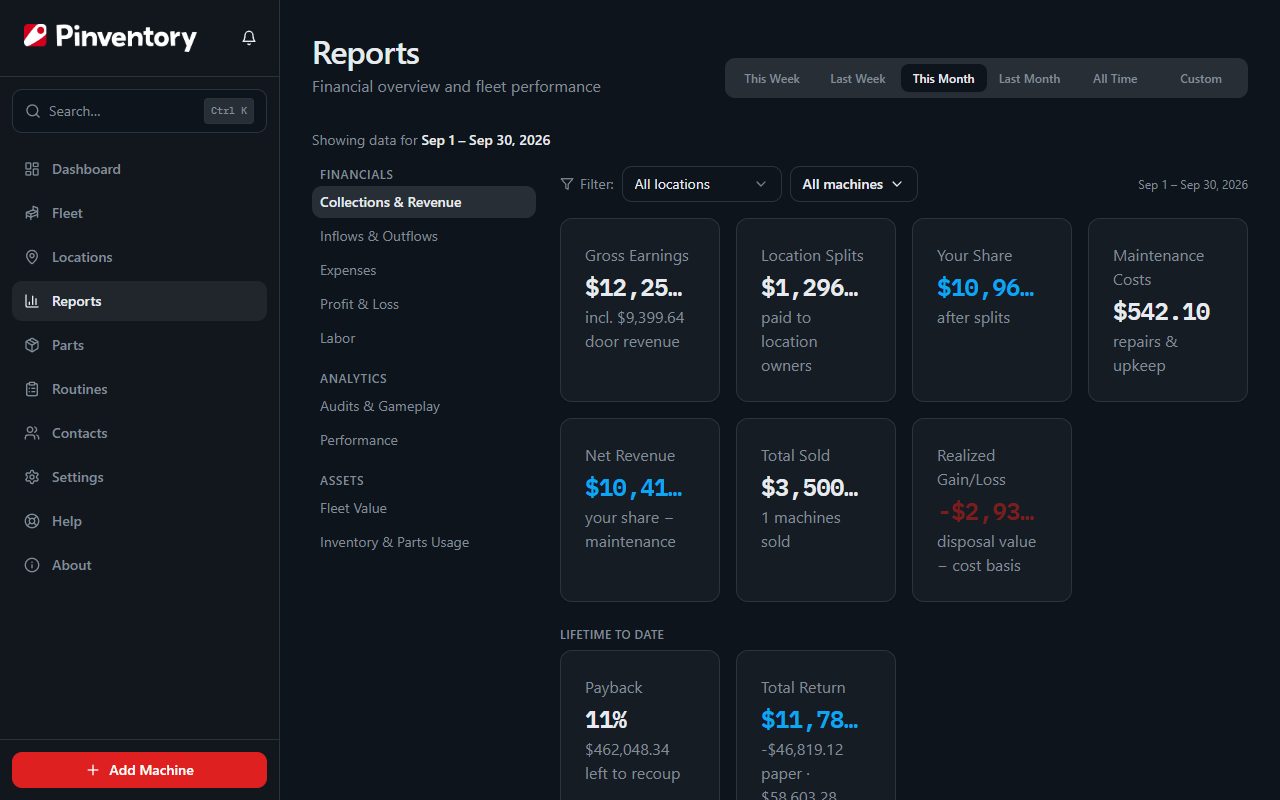
Reports shows the collected totals, your net after splits, and how each machine and each venue performed over the period you choose.
Use it to spot a game that has gone quiet, and to compare venues before you decide where the next machine goes.
When you move a game, the Performance tab counts it from the day it arrived at its new location, so the old location's earnings don't drag down its numbers. Under Days@loc it shows how its earnings per day compare with its last location. Turn off Count from arrival at current location to see the whole period again.
Pinventory also tells you how busy each game is. Set the operating hours on a location and record an average game time with your audit readings, and the Performance tab fills in Util %, the share of that location's open hours the game was in play. Under Improve earnings, it points out a game that is in play less than half as much as the other games at the same location.
Good to know
- The should-have figure needs play pricing on the machine, one audit reading from on or before the last collection, and one since. A game with more than one price shows a range, because the audit counts credits and cannot tell which deal a player bought. A game with no play pricing shows the earnings the game itself reports, if it reports them.
- At a location where players buy tokens from a change machine, you collect cash from the change machine and a token count from each game. The token locations guide covers it.
- Collections and payouts are owner and manager work. A technician can see a machine but cannot record money against it.
- Recording a payout does not move any money. It records that you paid, so your outstanding balance with the venue stays honest.
- A free-play venue has no Collect button, because there is nothing to split per machine. See the free-play guide.