


Add games
Add one machine at a time, or bring in a whole collection at once.
Start a new machine
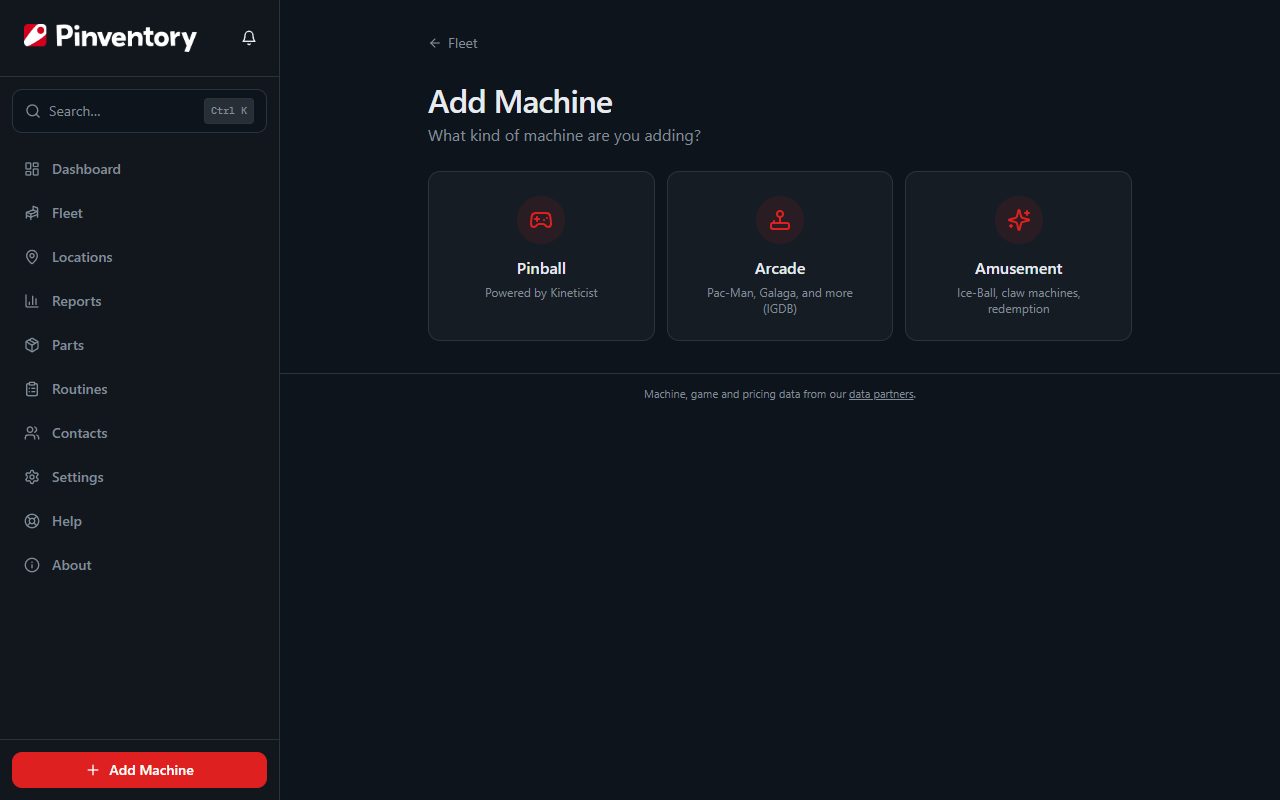
Open Fleet and use the Add Machine button in the header. Pinventory asks what kind of machine you are adding: Pinball, Arcade, Amusement, or Change Machine.
Pinball is the standard choice and is open to every account. Arcade and Amusement machines need Pro. On a collector account without it, Pinventory takes you straight to the pinball form and skips the question.
Change Machine is free on every operator account. It is for a location where players buy tokens, and the token locations guide covers it.
Find the game in the catalog
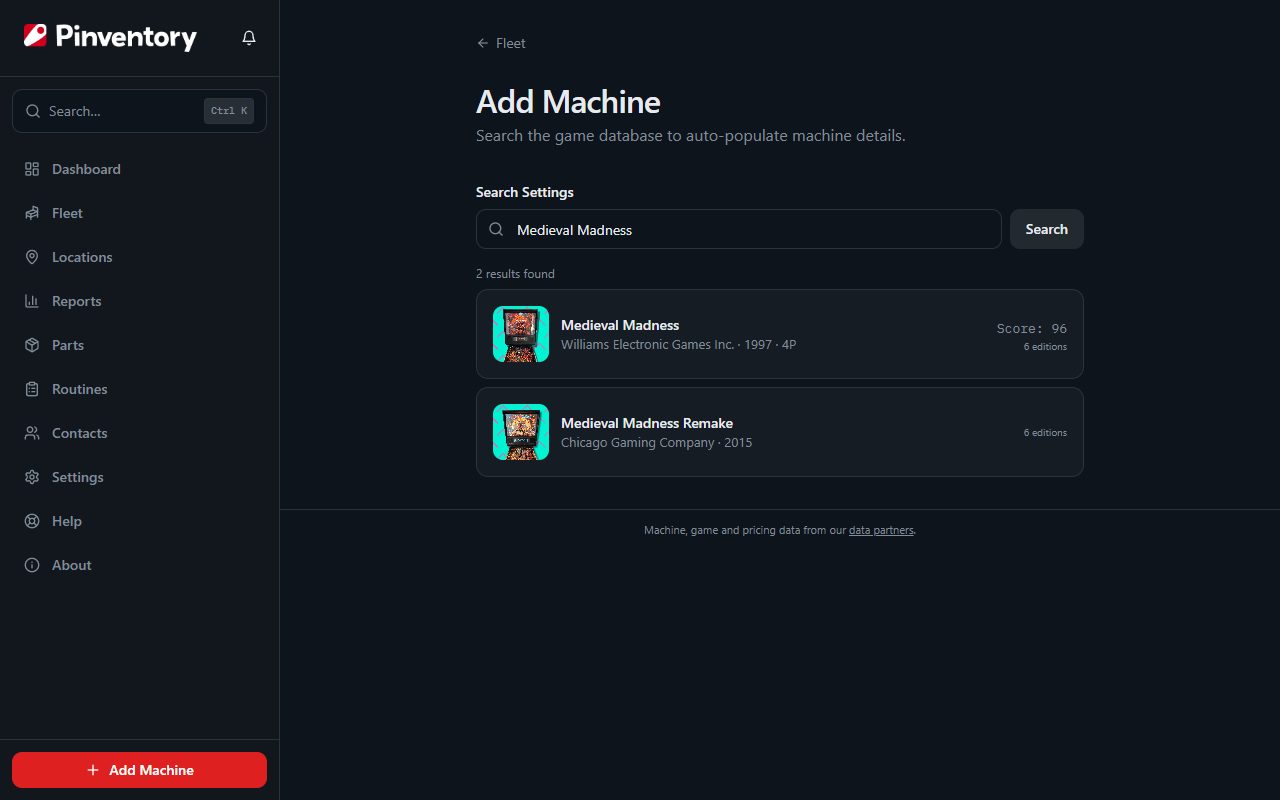
Type the title into the search box and select it from the results. Pinventory pulls the manufacturer, the release year, and the backglass art from its game catalog, so you do not type any of it yourself.
If the title shipped in more than one edition, pick the edition you own. The edition changes the name shown across the app and the parts that match your machine.
Search finds editions by their own name too. Many older games were re-released under another title, and the catalog files those as editions of the original. Searching "Solar City" shows a Solar City result marked "Edition of El Dorado", and choosing it selects the Solar City edition for you.
The catalog link is what makes manufacturer-specific features work later, such as Stern and Jersey Jack imports. Always link the game if it exists in the catalog.
Add your own details
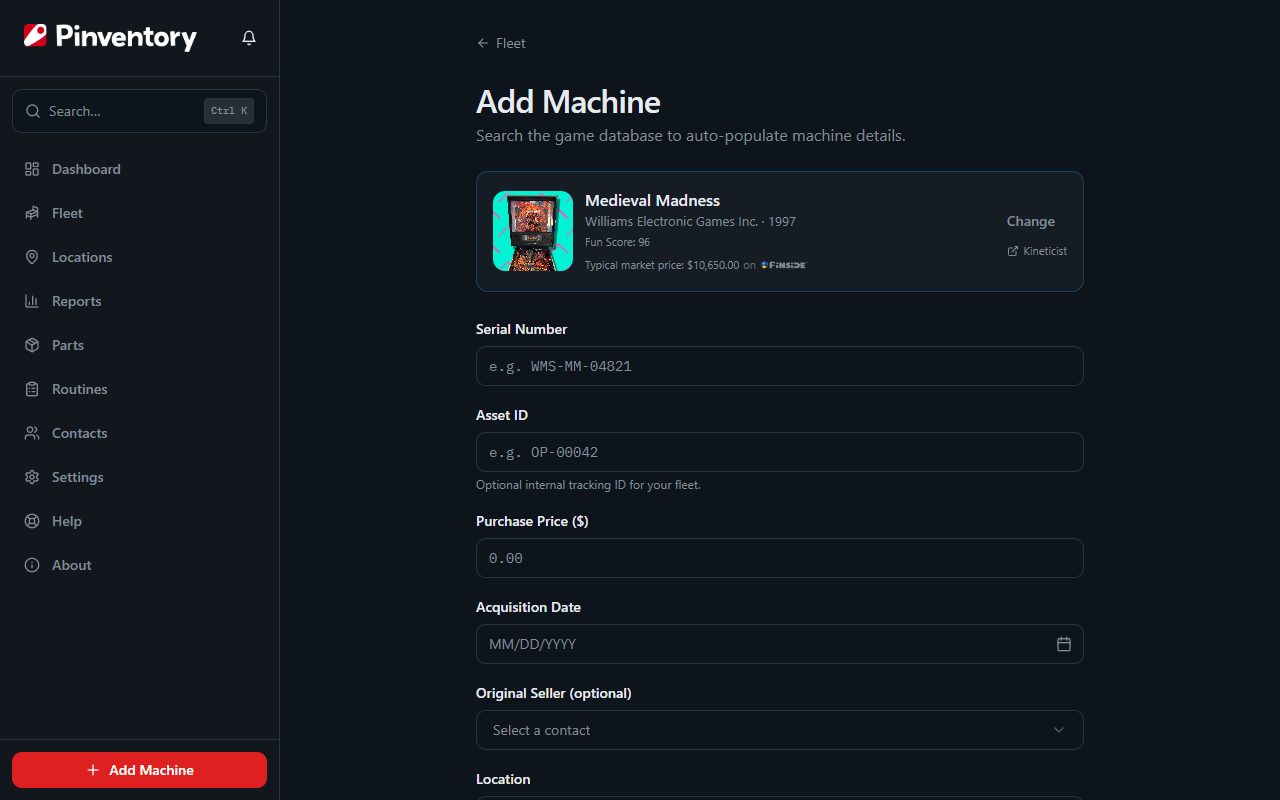
The rest of the form is the part only you know: serial number, asset ID, what you paid, when you bought it, and who you bought it from.
Operators can also assign the machine to a location here. You can change the location at any time from the machine page.
Tick Has NVRAM if the game stores its settings without batteries. Pinventory uses this to decide whether to warn you about battery corrosion on older games.
Import a spreadsheet
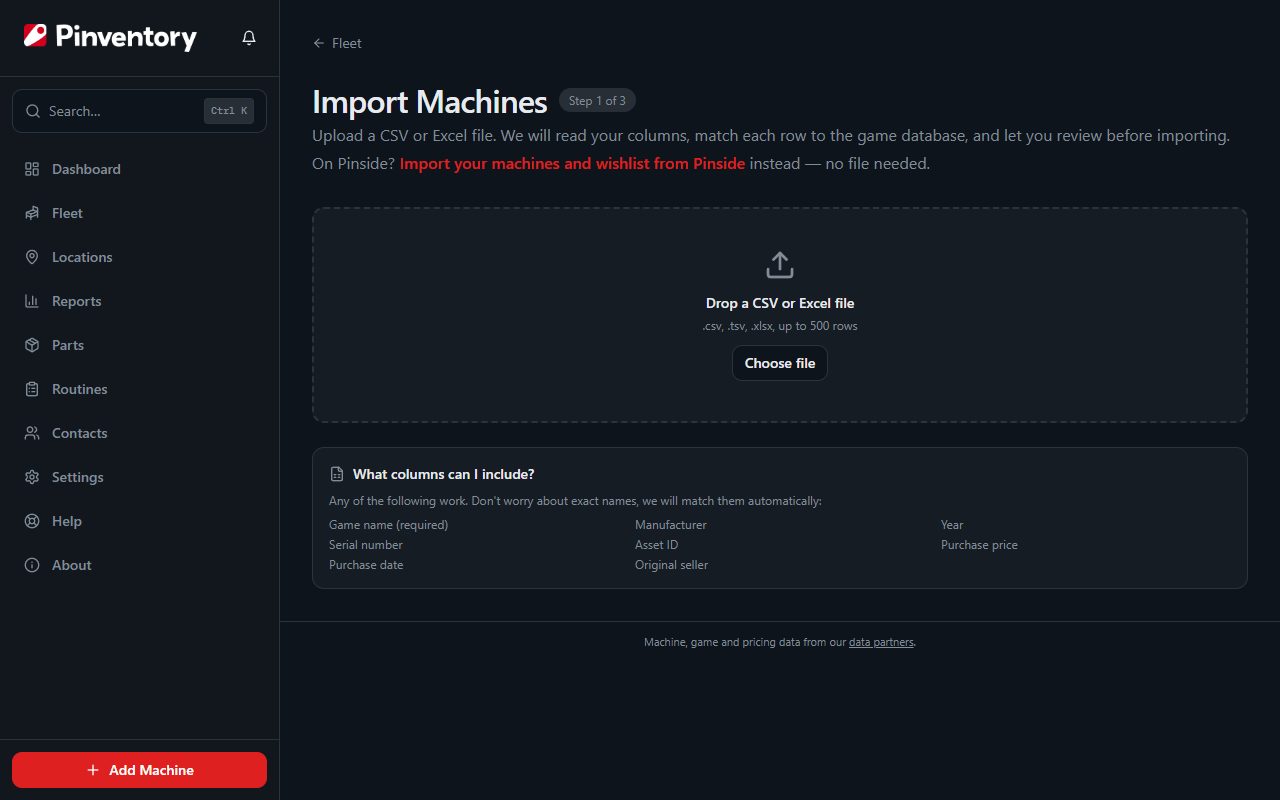
Already track your games in a spreadsheet? Use Import Machines on the Fleet header instead of adding them one by one.
The import runs in three steps. Upload your CSV or Excel file, tell Pinventory which column holds which field, then review every row before anything is saved. Rows that did not match a catalog game get a picker so you can correct them on the spot.
Import from Pinside
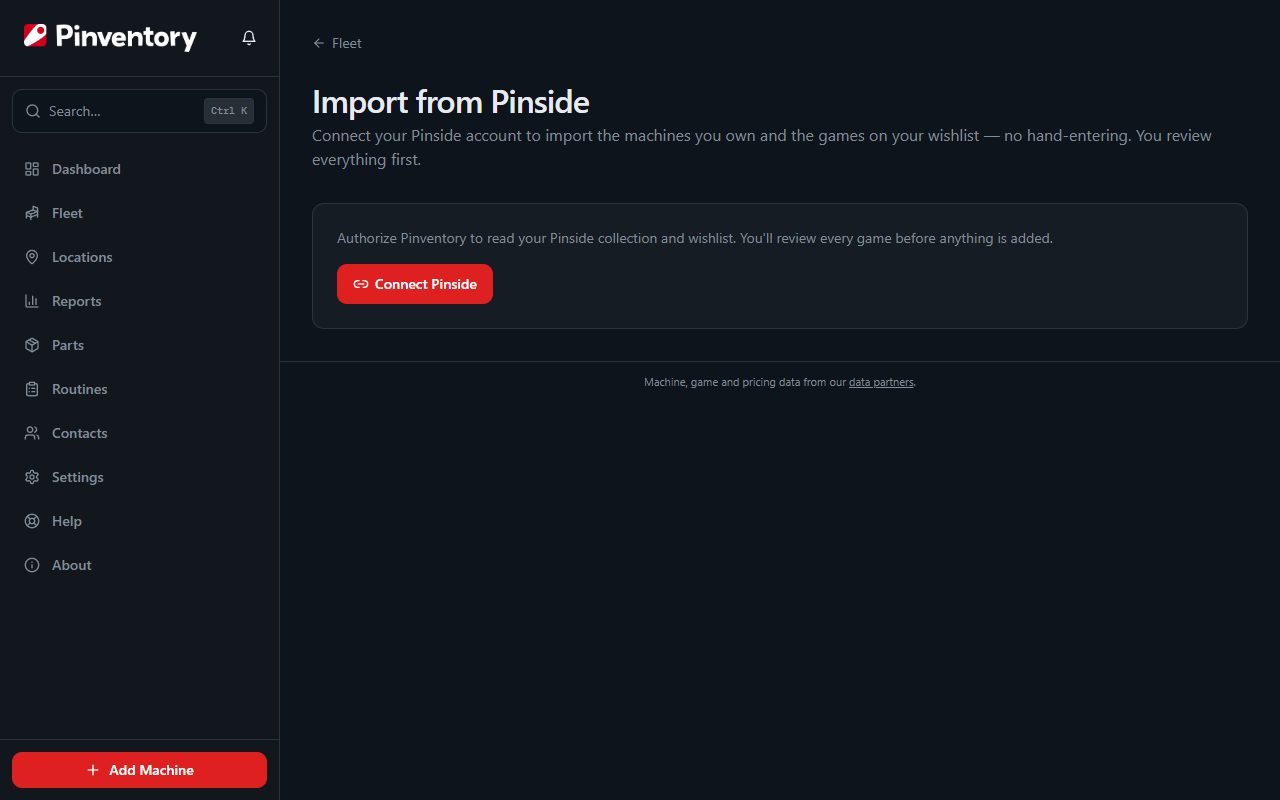
If your collection is already on Pinside, connect the two and bring it across. Pinventory sends you to Pinside to sign in, so it never sees your password.
Once connected, fetch your collection and review the matches. Your Pinside wishlist comes across as a wishlist, separate from the games you own.
Anything Pinventory recognizes as a game you already have is marked “Already in your fleet” and skipped, so importing on top of a fleet you typed in by hand won’t double it up. If you really own a second copy, choose “Import anyway” on that row — and if you own two of a title already, check those rows yourself, because Pinventory can’t tell which copy is which.
Good to know
- Manufacturer comes from the linked catalog game and cannot be edited. On an amusement machine, which has no catalog entry, you type the manufacturer yourself.
- An import never overwrites a game you already have. The Pinside import flags the ones you already own before you commit; on a spreadsheet import, review the matches and drop any duplicate rows yourself.
- Every machine you add gets its own QR codes right away. See the QR codes guide.