


Payment devices
Track the bill validators, card systems and coin mechs you own: which game each one is in, which ones sit on the shelf, and what they are worth.
Add a device to a game
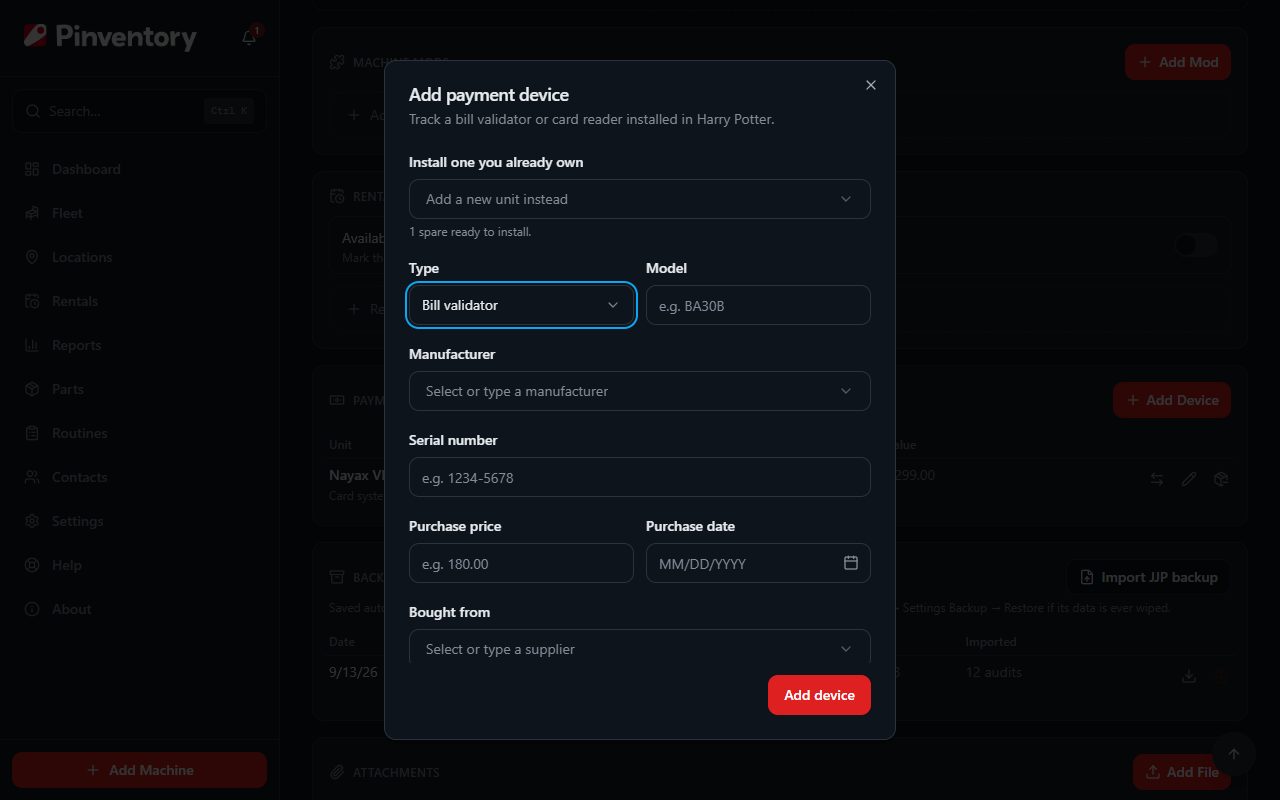
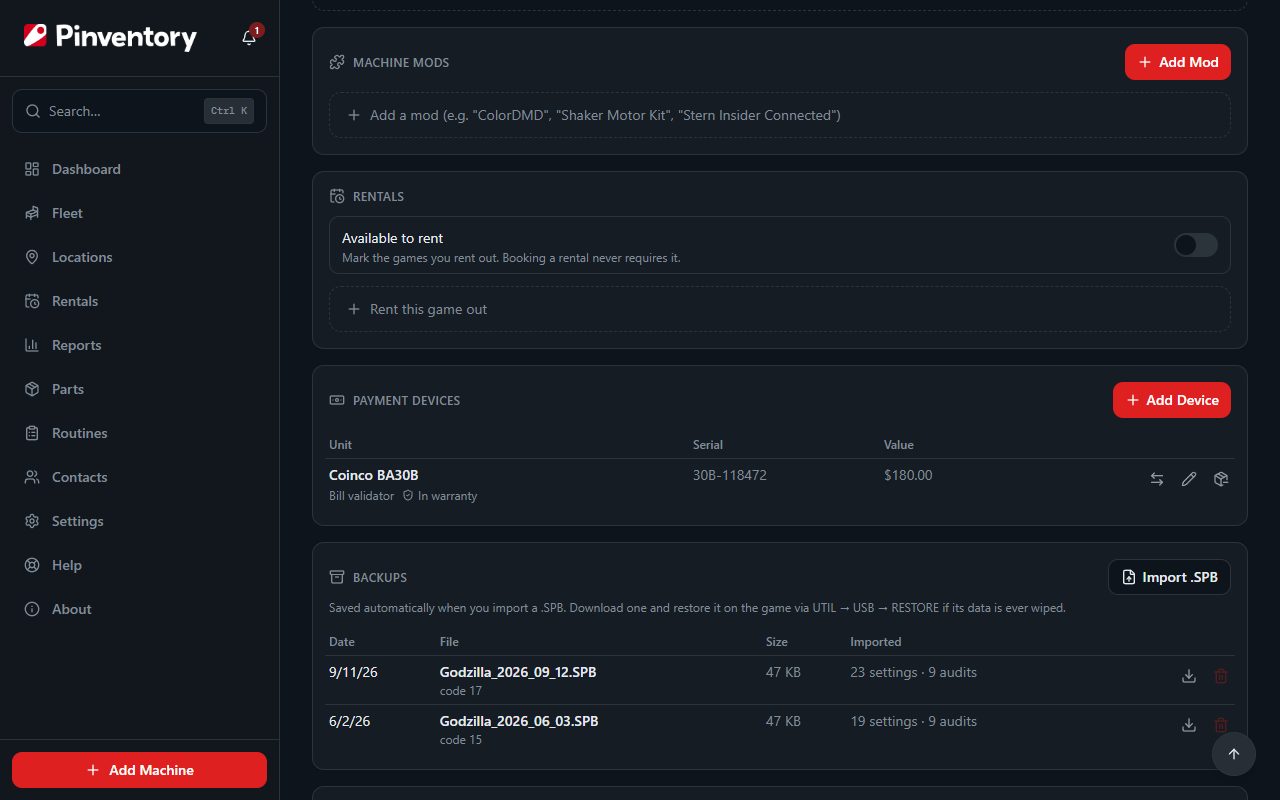
Open the machine and scroll the Details tab to Payment Devices, then press Add Device. Choose the type (Bill validator, Card system or Coin mech) and fill in the model, manufacturer and serial number.
Add the purchase price, the purchase date, where you bought it, and the date the warranty ends if you have them. Manufacturer and Bought from remember what you typed before, so the next Coinco or the next order from the same supplier is one click.
If another device already uses the serial number you type, the form says so. You can still save it, because a typo on the old record is as likely as a duplicate.
Use Custom fields for anything else worth writing down, such as voltage, bill set or firmware. Each field is a name and a value, and the names you used before show up as suggestions. Custom fields show on the device and in search, but never count toward a total.
Swap in a spare
When you have spares on the shelf, the Add Device form leads with Install one you already own. Pick the spare and press Install. Pinventory moves that unit into the game instead of creating a new record, and its history goes with it.
Only spares marked active appear in that list. A device you marked Down is out of service, so move it back to the shelf once it is fixed and it shows up again.
To pull a device out of a game, use the remove button on its row. It goes back to your shelf with its price, warranty and history intact. Removing it from a game never deletes it.
See every device in one list
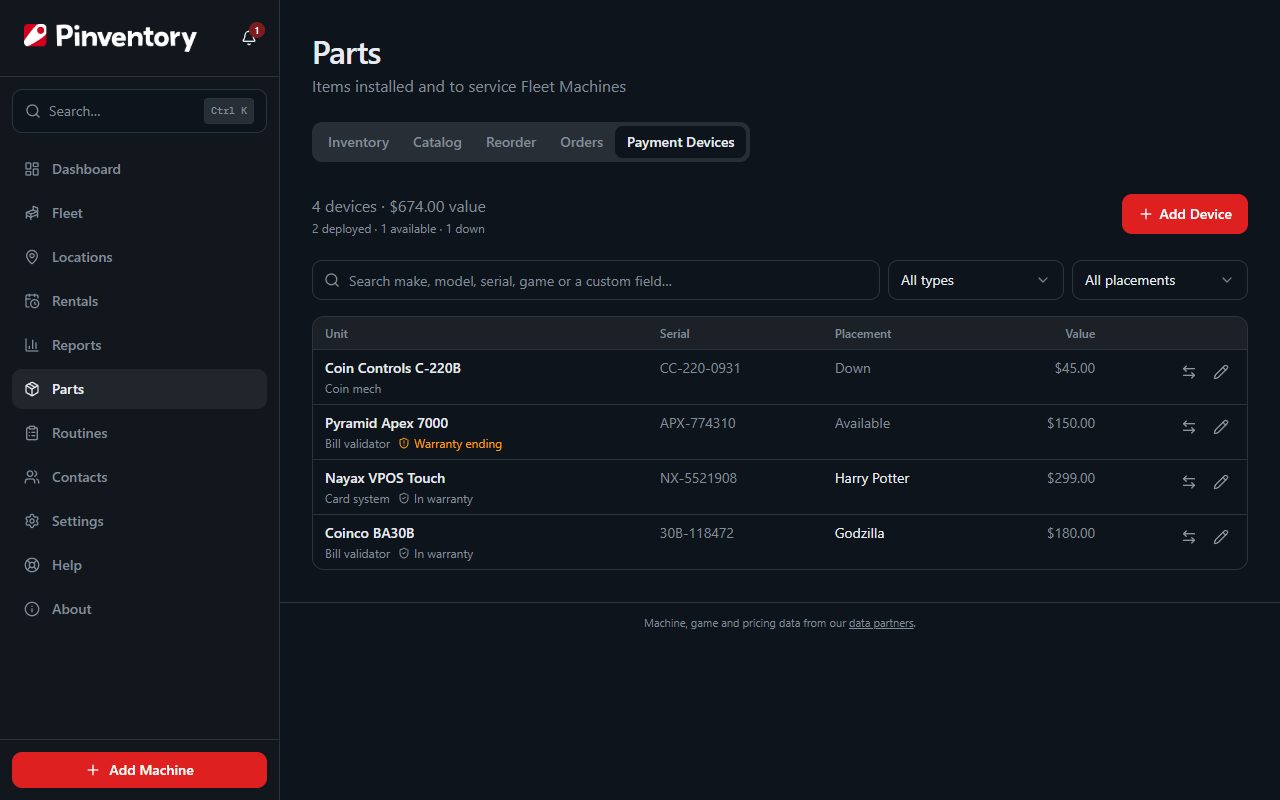
Open Parts and choose the Payment Devices tab. It lists every device you own, in a game or not, with the total value and counts of how many are deployed, available and down at the top.
Press Add Device here to record a spare that is not in a game yet. Search by make, model, serial number, game or any custom field, and filter by type or by placement: Deployed, Available, Down or Retired.
A warranty badge sits under each device that has a warranty date. It reads In warranty, then Warranty ending in the last 30 days, then Out of warranty. A device with no warranty date shows no badge.
Move a device
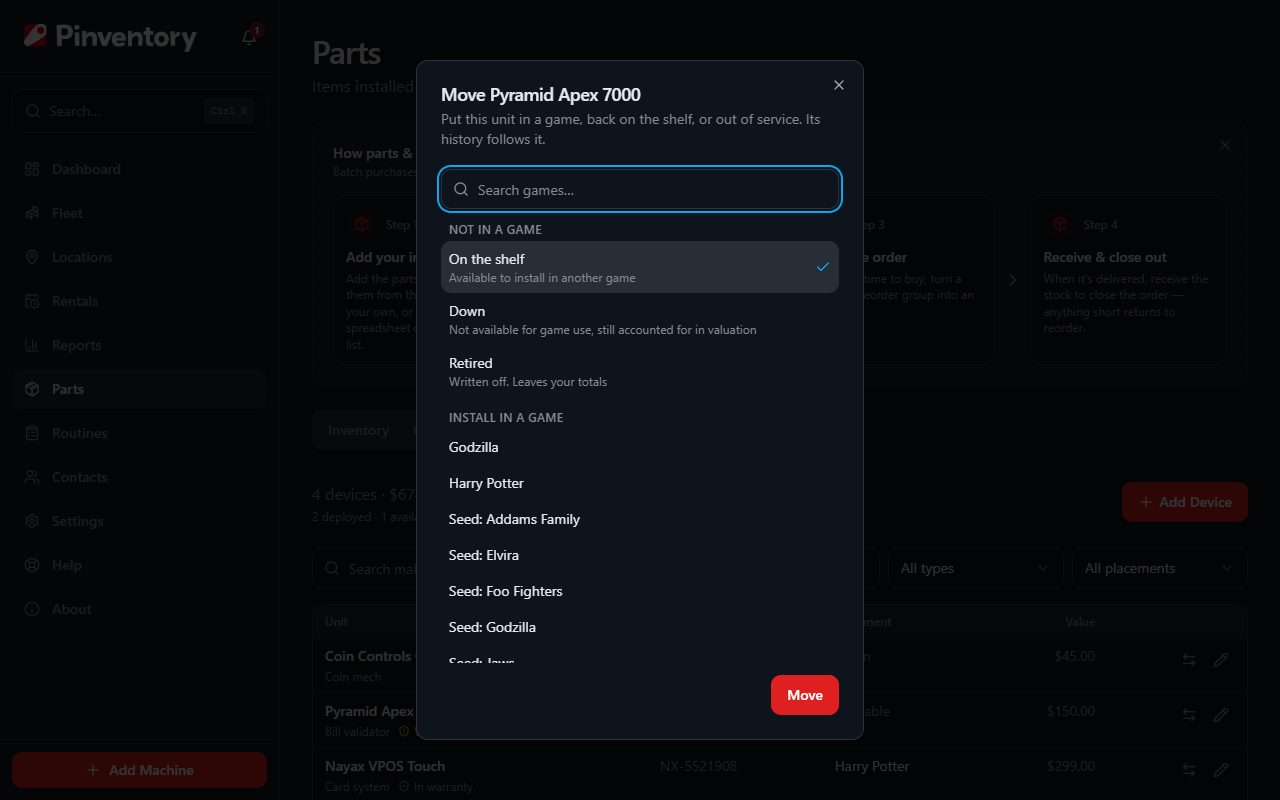
Press the move button on any device, in the list, on the machine card or on the device's own page. Search for a game and pick it, or choose one of the three places outside a game, then press Move.
On the shelf means ready to install in another game. Down means out of service but still counted in your value, for a device on the bench or waiting on a part. Retired writes it off and takes it out of your totals.
Open a device's own page
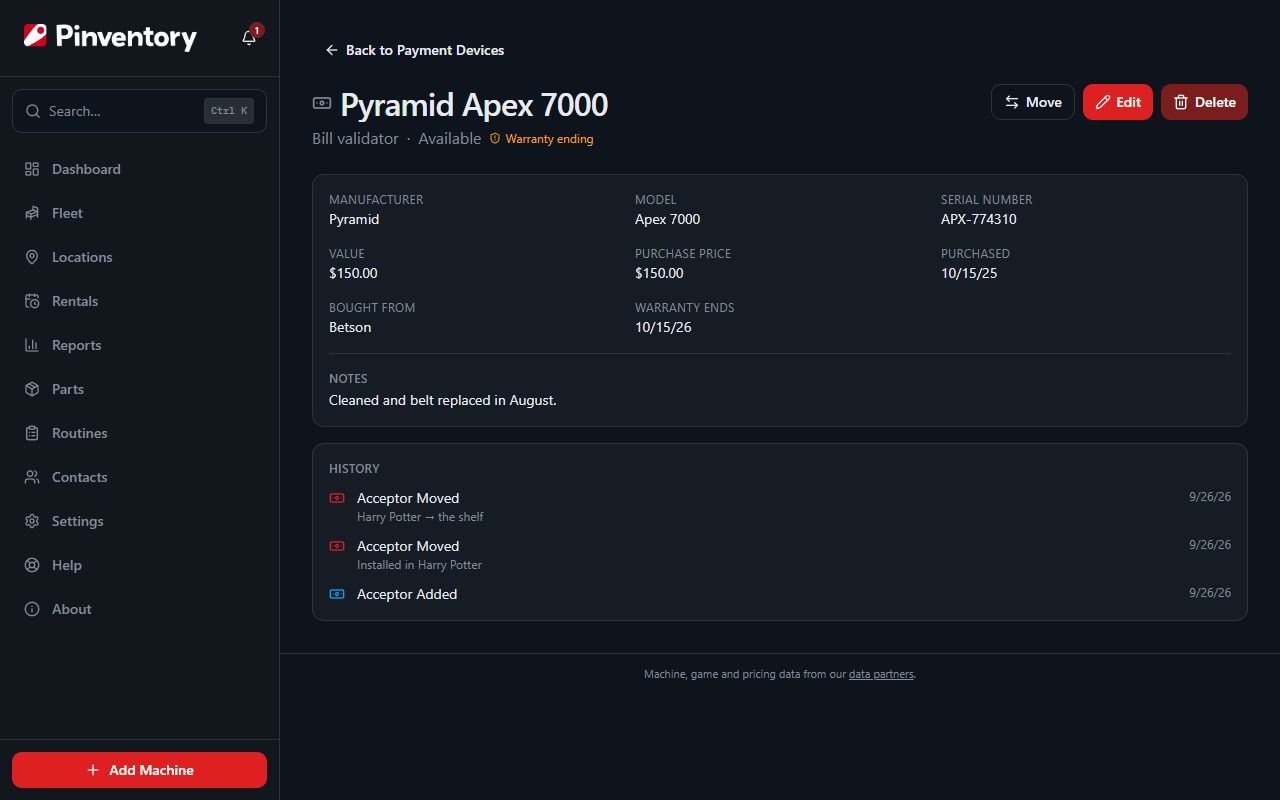
Tap a device's name to open its page. It shows every field you recorded, your custom fields and notes, and a History of what happened to it, including each move with the games it went between.
Move and Edit live at the top of the page, next to Delete. Delete removes the device, its history and its value from your reports for good, so use it only when the device itself is gone. To keep the record of a device you no longer use, move it to Retired instead.
Technicians can move and edit devices. Adding and deleting them is for owners and managers.
Where the value shows up
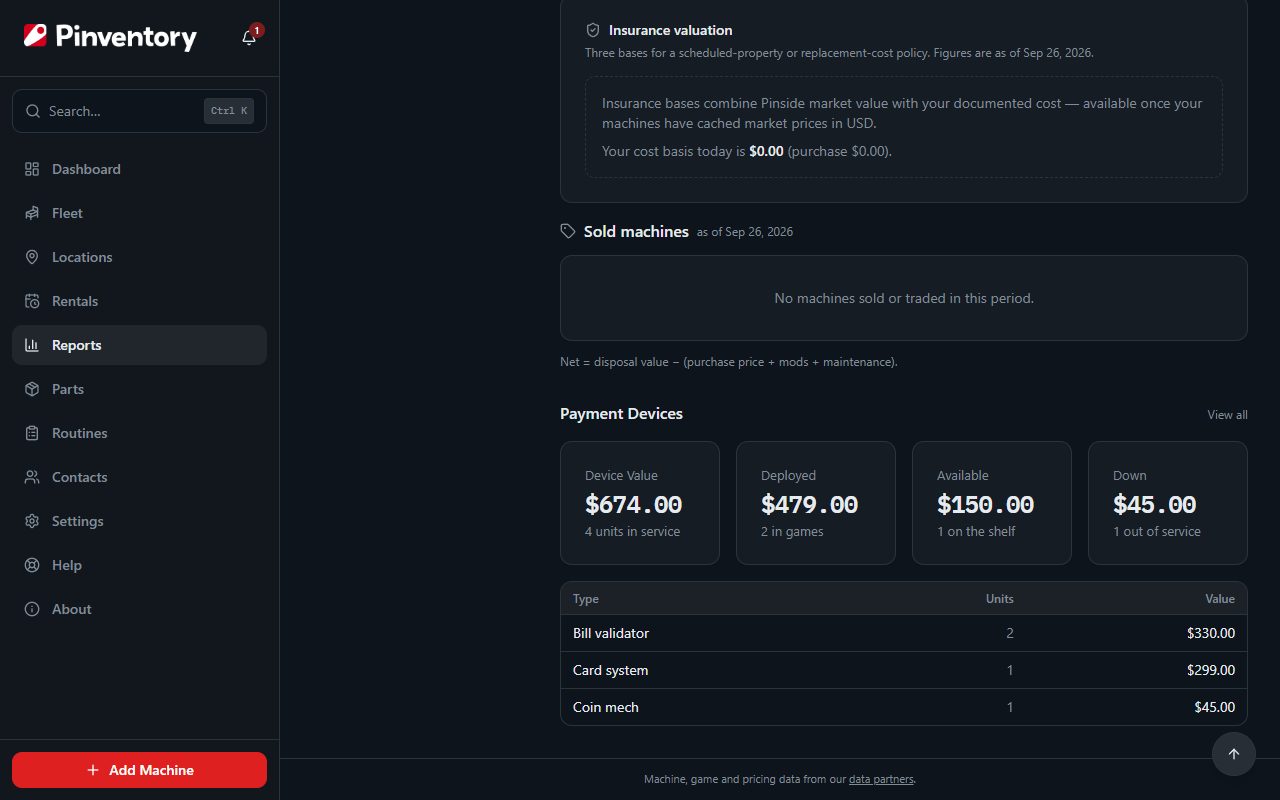
Reports shows a Payment Devices section on Fleet Value and on Inventory & Parts Usage, once you track at least one device. It gives the total device value, then the value deployed in games, available on the shelf, and down, with a breakdown by type underneath.
A device is worth its Current value if you set one, and its purchase price if you did not. Retired devices stay out of every total.
The value belongs to the device, not to the game it sits in, so it never joins a machine's cost basis. Moving a validator from one game to another leaves both games' numbers alone.
Good to know
- Keep a cleaning or repair log in the device's notes, for example the date you last cleaned the belt.
- Your data export includes every payment device, with each custom field as its own column.