


Members and dues
Keep the member roster for a club or museum in Pinventory: who your members are, what plan each one is on, what they have paid, and who has lapsed.
Turn memberships on
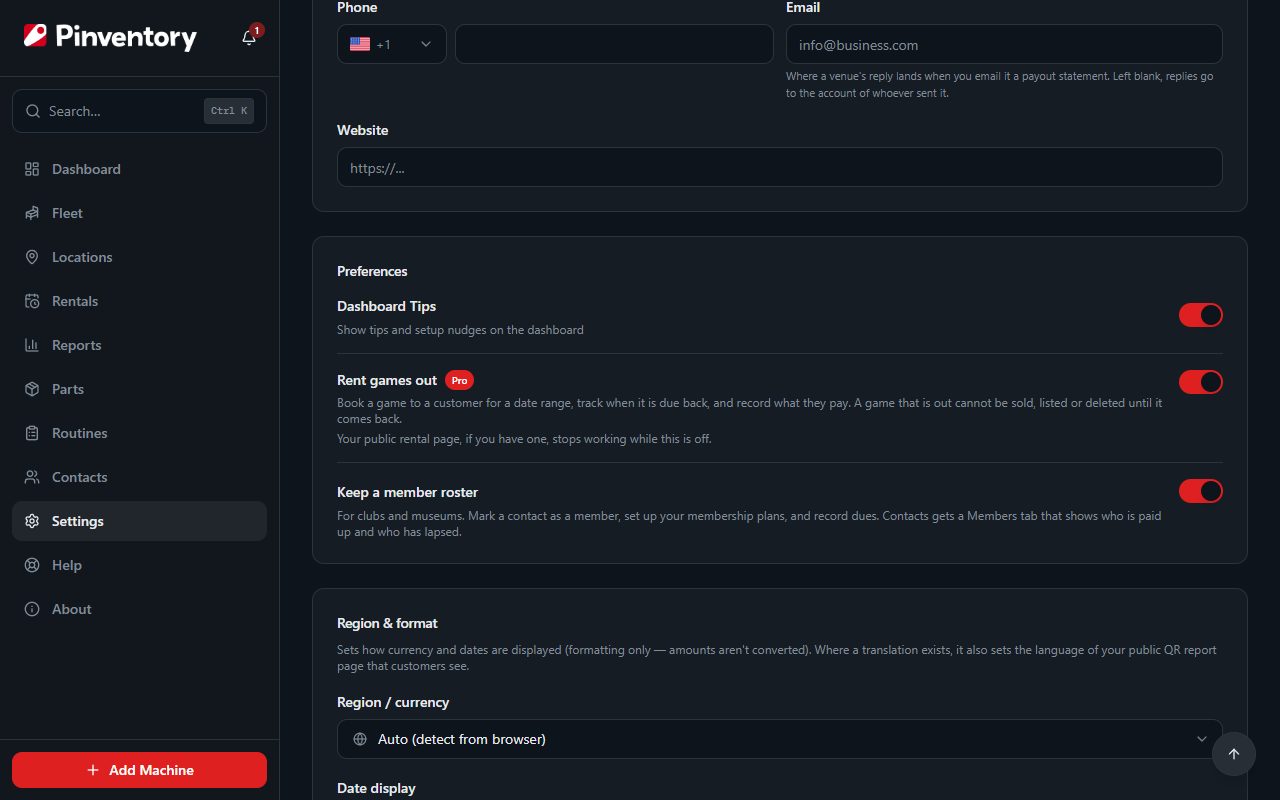
Memberships are off until you ask for them. Open Settings and switch on Keep a member roster, under Preferences. It applies to the whole account, and it is free.
Contacts then gets a Members tab beside All. Nothing else in the app changes, so an account with no members stays uncluttered.
Signed up as a club or a museum? You are on an Operator account, which is the right one. Memberships are not available on a Collector account.
Set up your membership plans
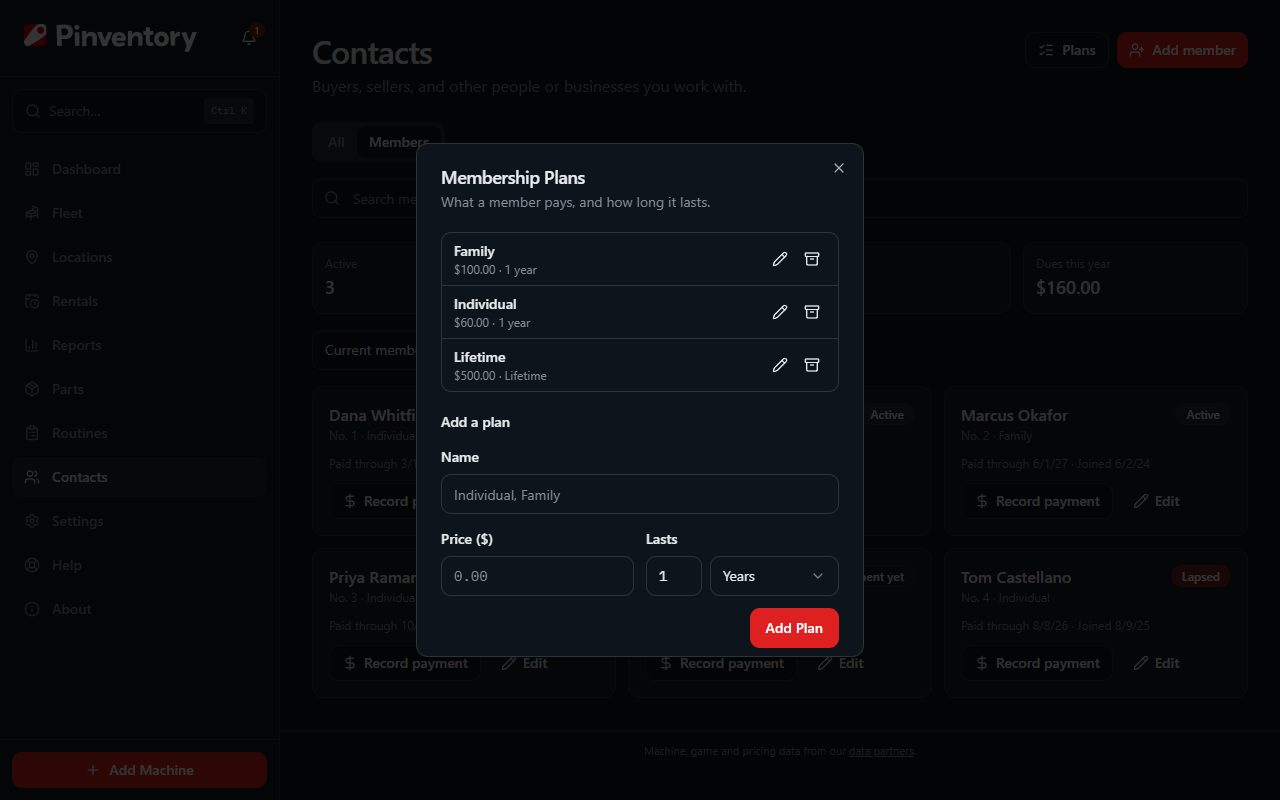
Open Contacts, go to the Members tab, and press Plans. Add a plan for each kind of membership you sell: give it a name, a price, and how long it lasts in months or years. Choose Lifetime for a membership that never runs out.
A plan is a starting point, not a rule. When you record a payment you can change the amount and the dates, so one Annual plan covers the member who joins in March and the member who pays half for the rest of the year.
Archive a plan when you stop selling it. Members who are on it keep it, and it stays on their old payments.
Add your members
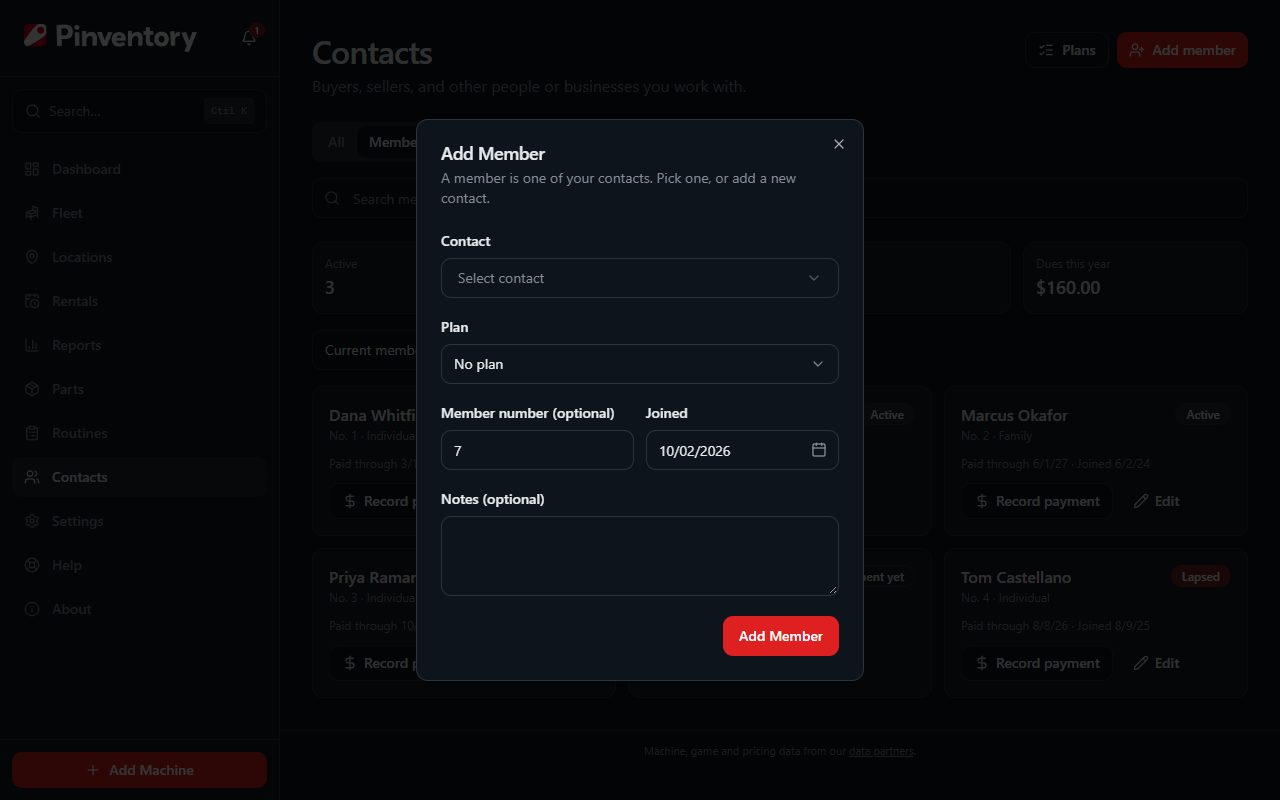
A member is one of your contacts. Press Add member and pick the contact, or add a new contact from the same picker. On the All tab, Make member on a contact's card does the same thing for that contact.
Choose the plan, and set the date they joined. The member number is optional. If your members are numbered 1, 2, 3, Pinventory offers the next number. If you use your own scheme, type it in.
A person on your team can be a member too. Everyone with a login already has a contact, so pick that one rather than adding them twice.
Record dues
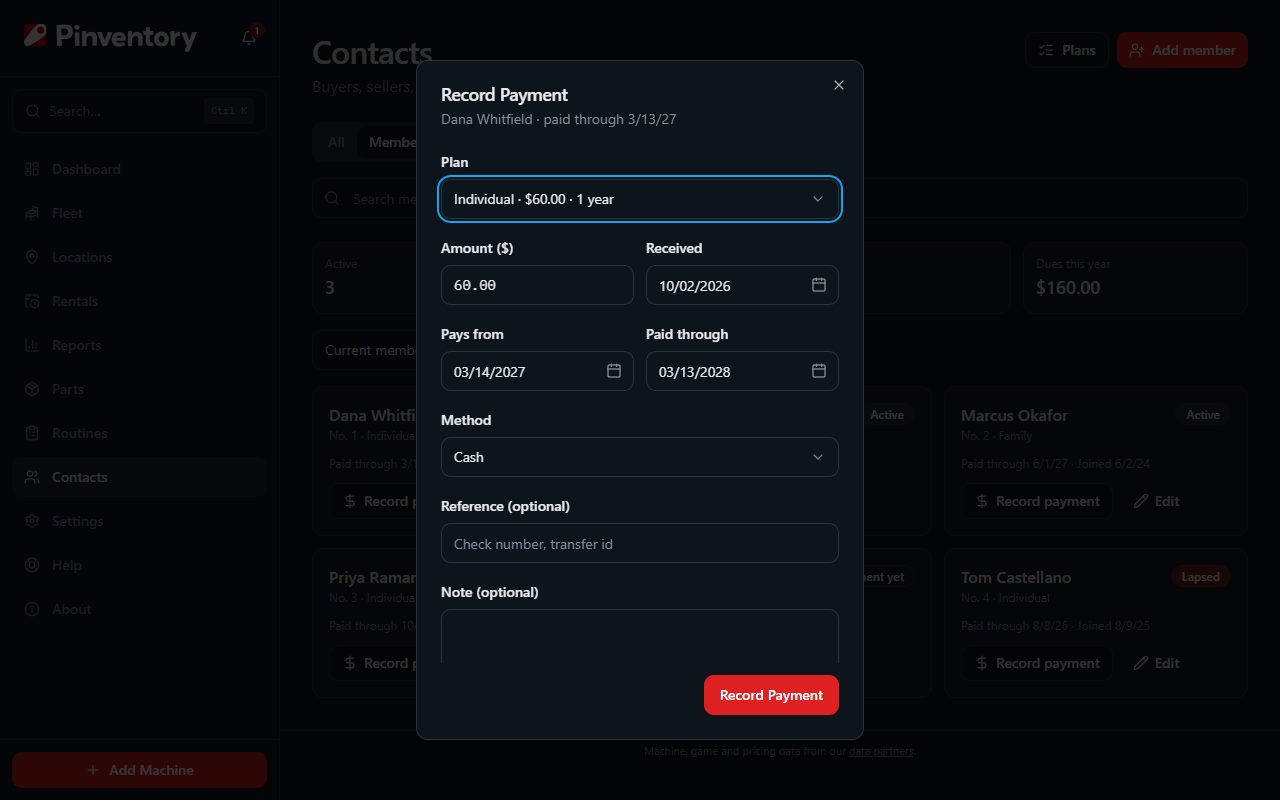
Press Record payment on a member. Pinventory fills in the price of their plan and the dates the payment pays for, so the usual renewal is one press.
A member who is still paid up renews from the day after their current term ends, so paying early costs them nothing. A member who has lapsed starts again from today. Change either date when the real arrangement is different.
Set how they paid, and add a check number or a note if you want one. Enter 0 as the amount for a membership you are giving away.
You never set a member's paid-through date yourself. Pinventory works it out from their payments. Remove a payment you entered by mistake and the date moves back.
See who is paid up
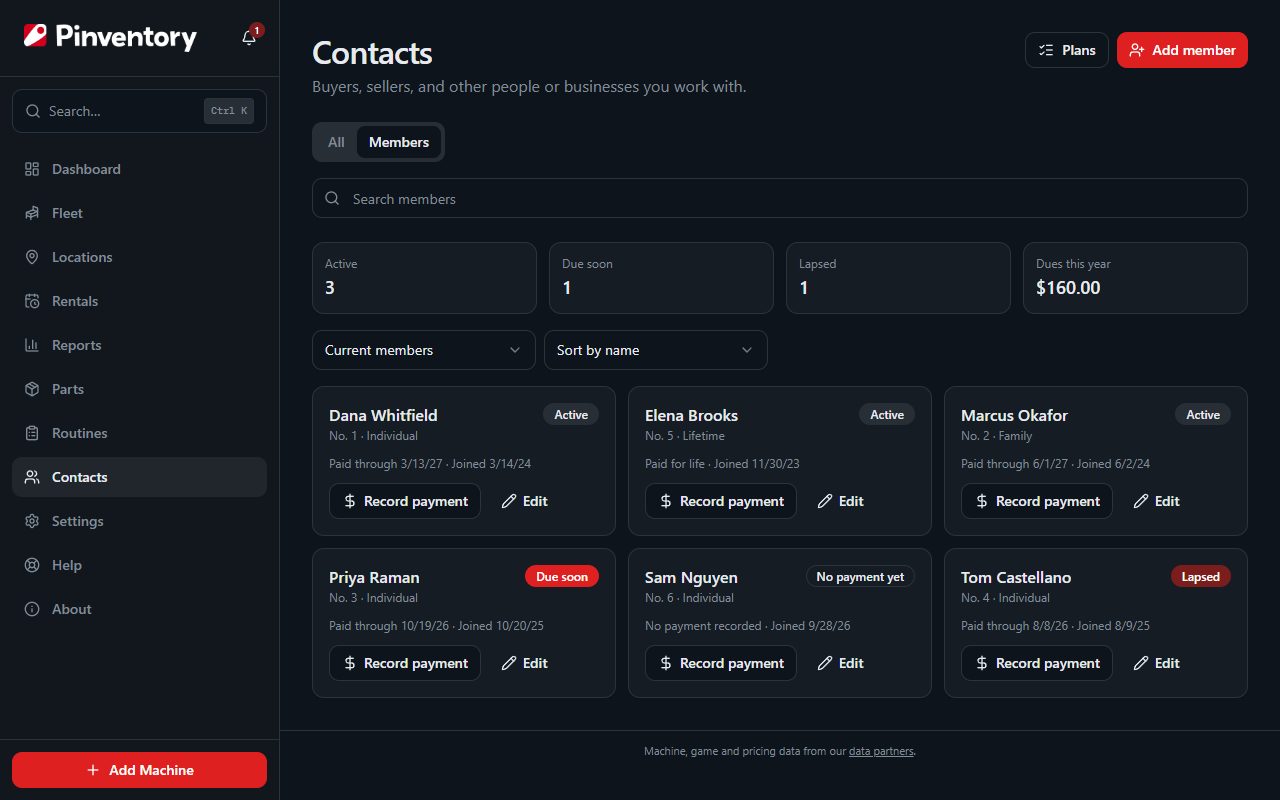
The Members tab opens on your current members, with a count of who is active, who is due soon and who has lapsed, and the dues you have taken this year. A member is due soon in the last 30 days of what they have paid for.
Use the filter to see one group. Needs attention shows everyone who is due soon or lapsed, which is the list to work down when you are chasing renewals. Sort by paid through to put the soonest first.
On the All tab, every member's contact card carries a Member pill with the same status.
Everyone on your team can open the Members tab and see a member's status, so the person at the door can check. Only owners and managers see dues and can make changes.
When a member leaves
Open the member with Edit and press Cancel Membership. They drop out of your current members, and their payments stay on record. If they come back, open them from the Cancelled filter and press Reinstate.
Added the wrong contact? A member with no payments shows Remove Member, which takes them off the roster and leaves the contact alone.
To delete a contact who is a member, take them off the roster first.
Where the money shows up
Dues count as income in your reports on the day you received them. They are in gross revenue on Profit & Loss, and they have their own Membership dues line under Money in on Inflows & Outflows. Both reports need Pro.
If you push to QuickBooks or Xero, dues go with the rest of your revenue, into their own Membership Dues income account.
Dues belong to the whole business, not to one location, so they do not appear when you filter a report or a push to a single location.
Good to know
- Members do not need an account or the app. The roster is yours, and nothing is sent to a member from it.
- For a family or household membership, add a plan called Family and put it on the person who pays.
- Turn the switch off in Settings and an empty Members tab goes away. A roster with members in it stays, so nothing you recorded is hidden.
- The roster is part of your data export, with the plans and every payment.