


Prioritize and assign issues
See every open issue in one list, then set what gets fixed first and who fixes it.
Set your levels
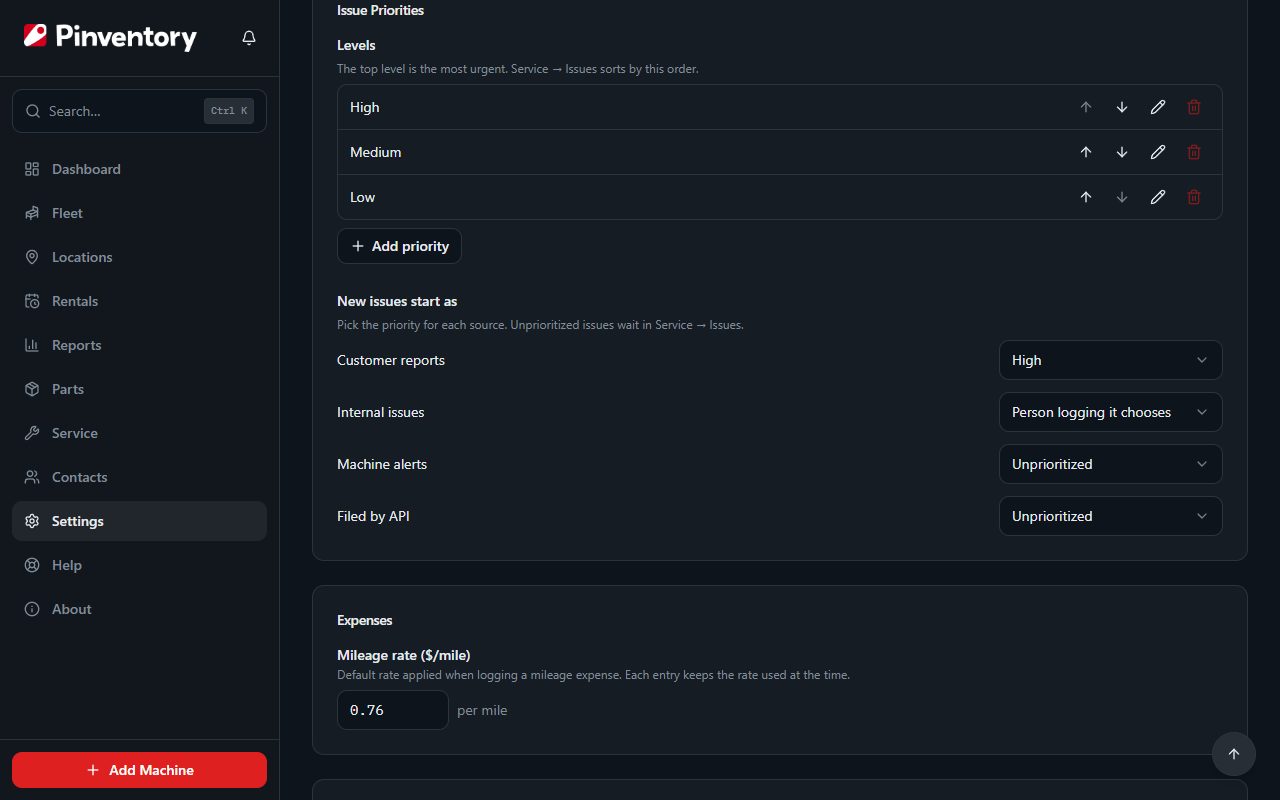
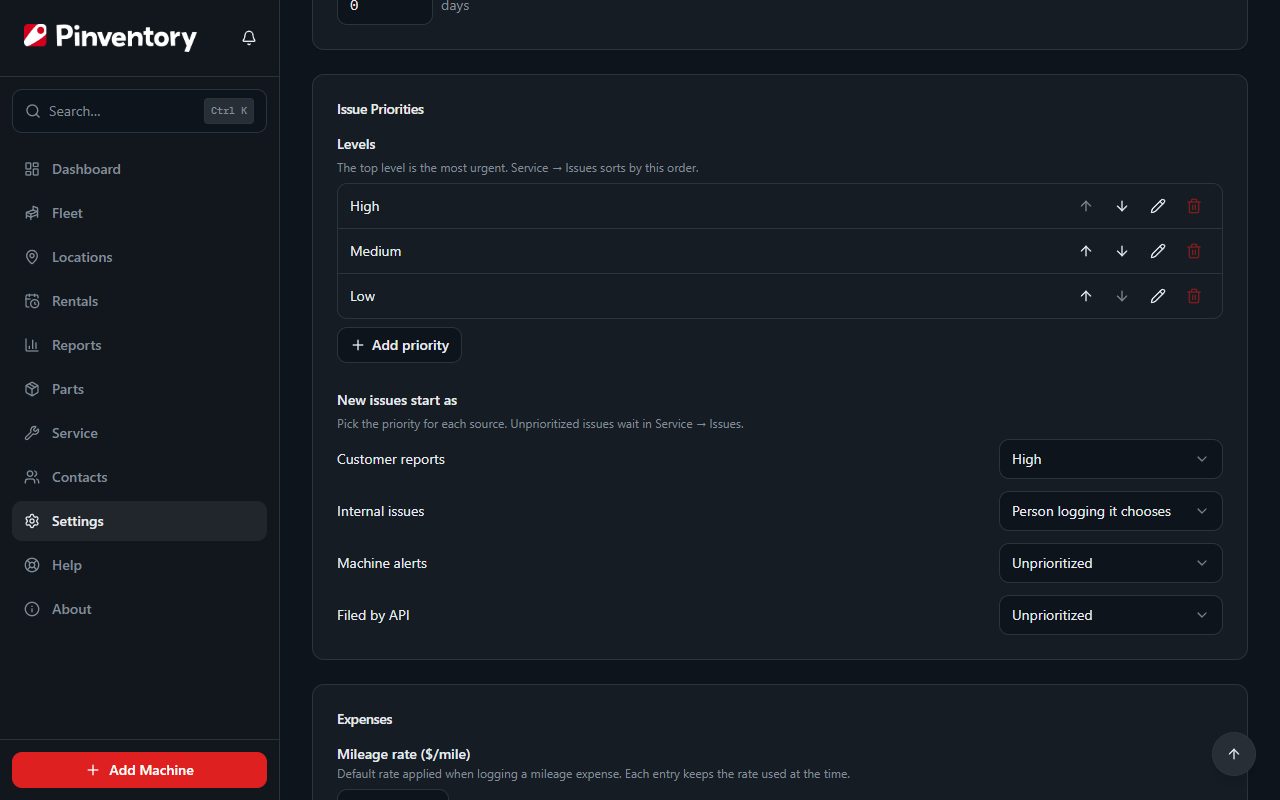
Open Settings and find Issue Priorities. Every account starts with High, Medium and Low. Press Add priority to add a level, or use the buttons beside a level to rename it, move it up or down, or delete it.
Put your most urgent level at the top, and the Issues tab sorts in that order. An issue shows as Unprioritized until someone sets its priority.
Deleting a level sends its issues back to Unprioritized. If a source starts at that level, new issues from that source start as Unprioritized too. Pinventory shows you what will change before you confirm.
Choose where each source starts
Under New issues start as, pick a starting priority for customer reports, internal issues, machine alerts and issues filed by API. A customer report can start as High, for example, while internal issues start as Unprioritized.
Every source starts as Unprioritized until you change it.
Internal issues have one more choice, Person logging it chooses. The Log an Issue form then shows a Priority field to whoever logs the issue.
See every open issue
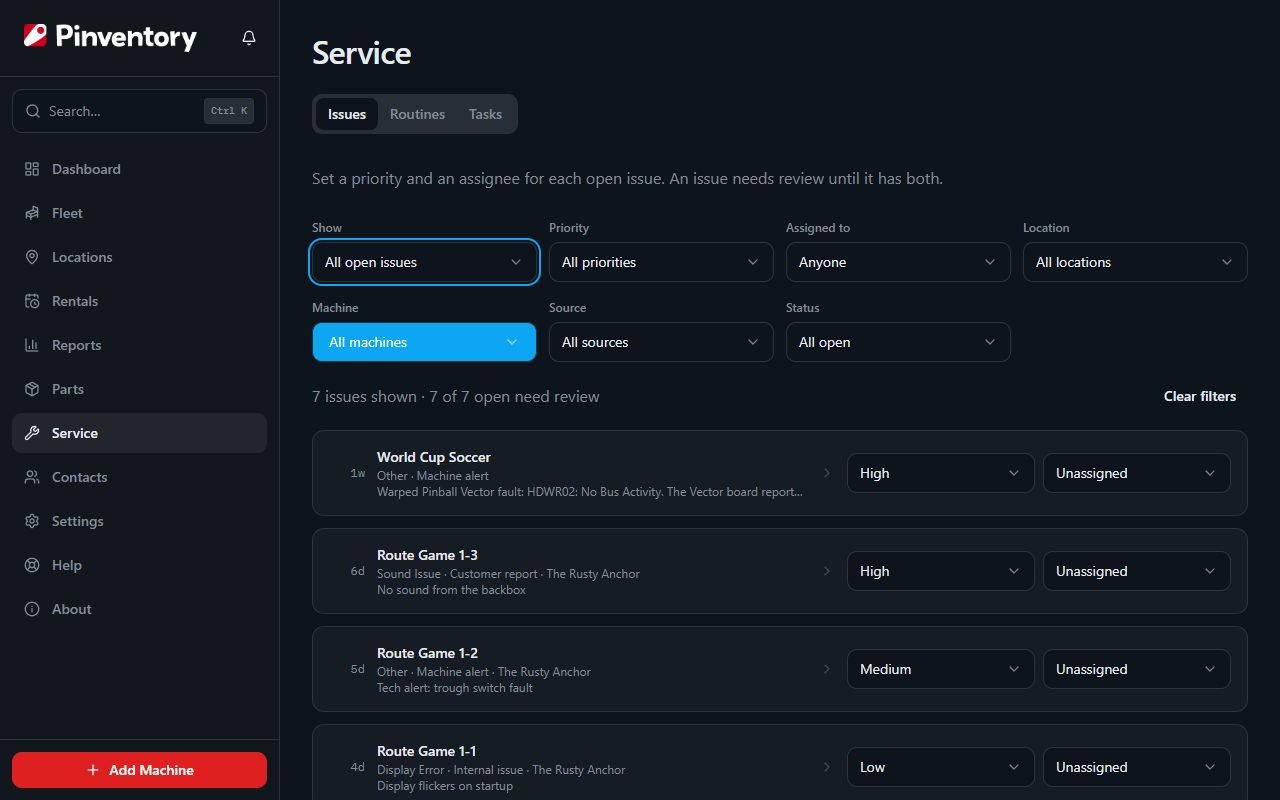
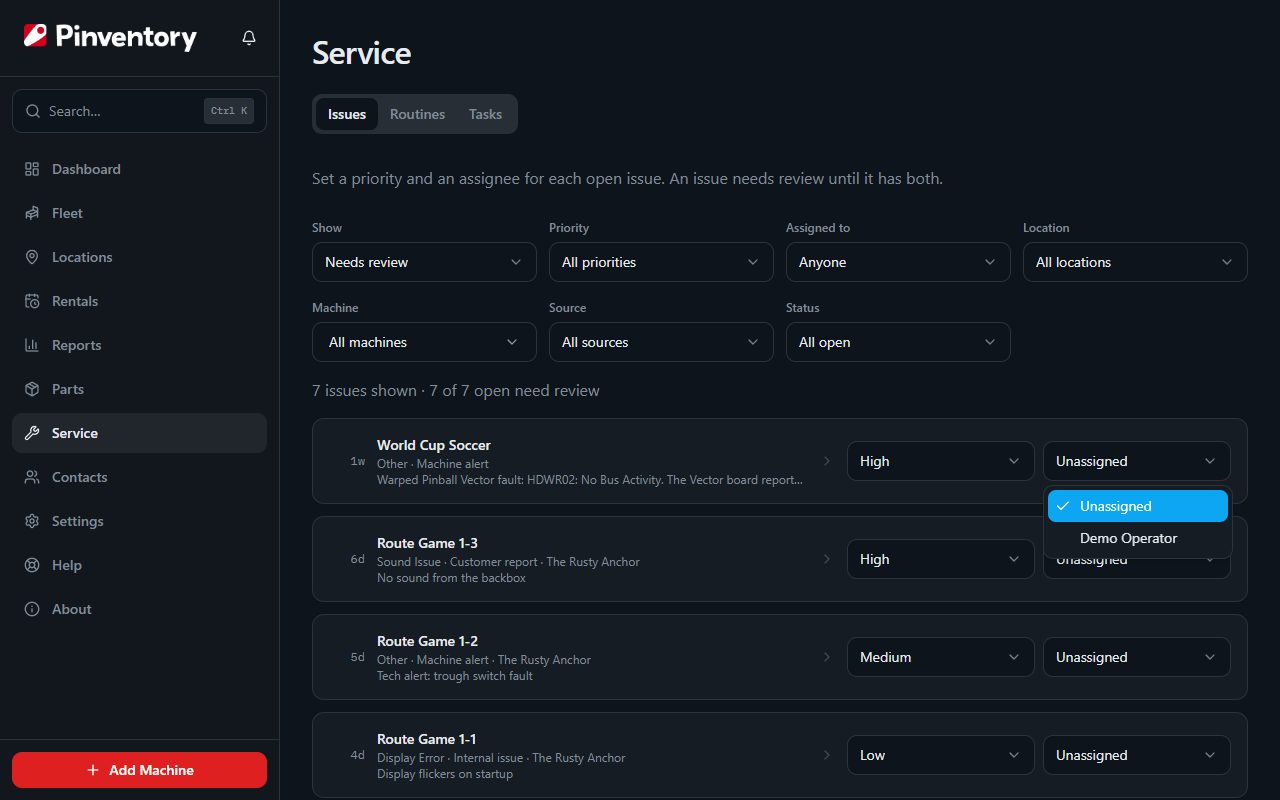
Open Service. The Issues tab comes first and lists every open issue across your fleet, with the most urgent at the top and the oldest first within each priority. Unprioritized issues sort last.
The list starts on Needs review, which shows an open issue with no priority or no assignee. Switch Show to All open issues to see everything that is open and who has it.
Filter the list
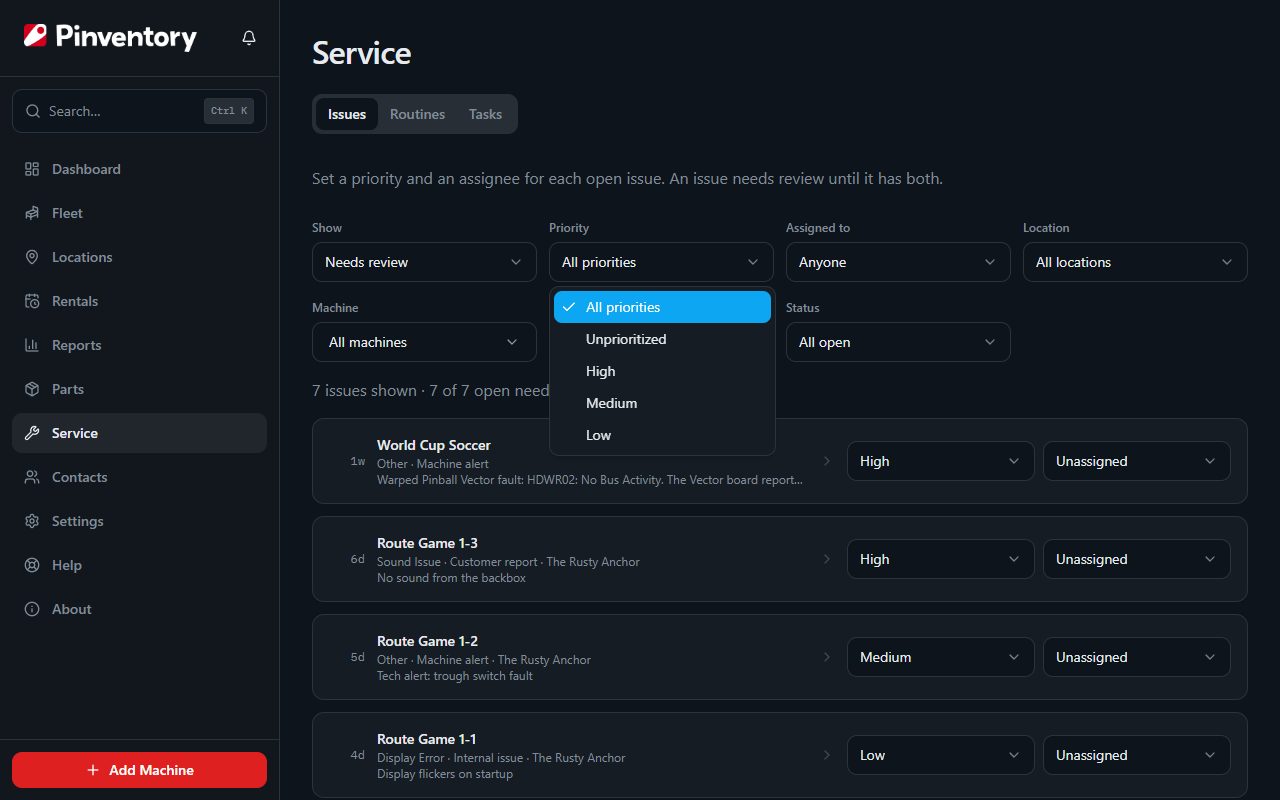
Narrow the list by priority, assignee, location, machine, source or status. Pick Unassigned under Assigned to, or Unprioritized under Priority, to find what nobody has picked up.
Clear filters puts every filter back at its starting choice.
Set the priority and assign it
Each row has a priority picker and an assignee picker, and a change saves as soon as you make it. Under Needs review, an issue leaves the list once it has both.
The person you assign gets a push notification and an email that names the machine and the problem. If you assign an issue to yourself, Pinventory sends nothing.
Open an issue
Press a row to open that issue on its machine. From there you can edit it, add a photo, or resolve it and log the repair. The Track and fix issues guide covers those steps.
Who can do what
Owners and managers can do everything in this guide, including levels and the starting priority for each source.
Technicians see the Issues tab and can set the priority and the assignee. They cannot change levels or the starting priorities.
Employees do not see the Issues tab. They can pick a priority when they log an issue, if internal issues are set to Person logging it chooses.
A team member limited to certain locations sees only the issues at those locations.